Commands list
[Through release 4.19. Last updated: 8-October-2004 -- by
Jim Solomon]
ABS
Compute the absolute value of the pixels intenity.
ADD [NAME]
Add the image in memory to the image designated by NAME on the disk
(the image must be in the current directory).
ADD2 [NAME] [NUMBER]
Adds [number] images in the sequence of images having the generic name
[name].
Example
ADD2 I 3
adds the images I1.PIC, I2.PIC & I3.PIC.
Click here for
an application.
ADD3 [NAME] [FWHM] [NUMBER]
When using the command REGISTER with deep-sky images, a file FWHM.LST
is created on your hard drive. In this file, the first column contains
an image index and the second one corresponds to the largest FWHM
(along either X or Y axis, whichever is greater) of stars within the
image.
Images indexes appears according to increasing FWHMs. So, it is
possible to determine the best images in the series by a simple look
at this file. The command ADD3 is essentially the same as ADD2, except
that only the images with FWHM better that [FWHM] will be added. ADD3
uses the file FWHM to do so. Then you may add only the best images of
the series.
Example: ADD3 M51- 1.9 12
ADD_MAX [NAME]
Suppose the intensity I1(x,y) of a pixel in the image I1 at
coordinates (x,y) and the intensity I2(x,y) of a pixel
in the image I2 at the same coordinates (x,y). ADD_MAX
produce a new image, I, where the intensity of pixel (x,y)
is:
I(x,y)=I1(x,y) if I2 <= I1
I(x,y)=I2(x,y)
if I2 > I1
In other word, a pixel of image I1 is replaced by a pixel
of image I2 if the local intensity of I2 is superior to I1.
The usage of ADD_MAX is simple:
LOAD I1 (load
in-memory the I1 image)
ADD_MAX I2
(compute substitution)
SAVE I
(save the
result)
ADD_MAX is compatible with 16-bits format (gray level
images) and 48-bits format (true-color images).
Click here for a typical application.
ADD_MAX2 [NAME] [NUMBER]
Function very similar to ADD_MAX but process many images
simultaneously. For example for stack images I1, I2, I3, I4, I5, enter
the command:
ADD_MAX2 I 5
This function is very efficient for construct long exposure
star-trails images. About this method read the excellent paper of Peter
Michaud (Gemini observatory) in the Marsh 2004 issue of Sky and
Telescope. Click
here for an example.
ADD_MEAN [NAME] [NUMBER]
Calculate the average of a sequence of images.
ADD_NORM [NAME] [NUMBER]
Same command as ADD2 but normalise intensity to 32700 if value of one
or many pixels are upper to 32768 after coading.
ADD_NORM2 [NAME] [NUMBER]
Same command that ADD_NORM (addition of a sequence of images
and normalize the most intense pixel to 32767 if necessary), but the
zone where normalize is computed is selected with the mouse. This
gives flexibility for some situation cases to avoid saturating a
specified part of the image.
AF3 [COEF]
Adaptive filtering of the noise in an image. Adaptive filtering
consists of adjusting the strength of the filter as a function of
local statistical criteria. The filter will be most active where the
signal to noise ratio is low. This type of filter reduces the noise
while conserving a maximum of details in the image.
The parameter [coef] contains a value that fixes the global
strength of the filter. The filter does not act if [coef]=0, and
the filter gets stronger as the value of [coef] increases.
Typically, [coef] is between 0.1 and 5.
AF3 uses a zone of 3x3 pixels, centered on the pixel being
processed, for the statistical calculation.
See also: AF5, MMSE
The AF3 command is a remarkably effective tool for reducing the
noise in an image while preserving a maximum of details. This command
(or AF5) is often chosen for this type of application instead of the
filters whose action is isotropic (like those provided in the GAUSS
command).
AF5 [COEF]
Same command as AF3 with a 5x5 array.
ANG_FILTER [XC] [YC] [RADIUS] [SIZE]
Performs a low-pass filter on rings centered to ([xc],[yc]). The
algorithm computes the average of pixels in the ring in sectors of
[size] degrees. The size of the computation relative to the center
(xc,yc) is a circular area of dimension [radius].
The ANG_FILTER command is generally use to enhance
radially structured features in images, such comet or a solar jets
visible during a total solar eclipse.
Click here
for a full application example.
ANIM_PLOT [DATA] [OUTPUT] [DIM X] [DIM Y] [YMIN] [YMAX] [TITLE] [NUMBER]
Save a series of graphics images calculated with the data present in
sequences of file of generic name [DATE] (the extension of the file is
.DAT). These data files are text type and contain two columns (axes X
and Y respectively). They are produced for example with command
DATA_ANIM. Graphics are saved in the form of images of
generic names [OUTPUT] and of size in pixel
[DIM X] x [DIM Y]. The range along the Y-axis is
defined with the parameters [YMIN] and [YMAX]. The number of data
files in the sequence is indicated in the parameter [NUMBER]. The
parameter [TITLE] is a character string which will be displayed on the
top of each graphics. The white character is the symbol " _ ".
Example:
ANIM_PLOT SPECT GRAPH 300 400 800 20000 It_is_a_spectrum
23
See also command PLOT2 which displays only one graph in a
similar way and which makes it possible to test
ANIM_PLOT. ANIM_PLOT is often exploited in partnership
with command DATA_ANIM
for the dynamic study of the spectra. An example is
here.
ASCALE
Enlarge of facteur two the current image (image in memory). This
function preserve the intensity per unit of area. This command is
useful for precise aperture photometry (PHOT and PHOTM
commands). Enlarge first the image (apply many time ASCALE is
necessary), then mesure the stellar image with large aperture
cercles. Click
here for details.
ASCALE2 [INPUT] [OUTPUT] [NUMBER]
Same as ASCALE but for a sequence of images. Click here
for details.
ASINH [ALPHA] [INTENSITY]
This command is for processing red, green and blue (RGB) composites
from three-band astronomical images. ASINH stretch the image to show
faint objects, while simultaneously preserving the structure of bright
objects of the field. The color contrast is boosted by the application
a non-linear stretch: the Arc Sinus Hyperbolic function. This method
permit to reveal an enoumous amount of information: index color of
stars, faint nebulae, galaxies having a distinctive colors (see for
example, the Hubble Deep-Space images of the HST, many time processed
with a function very similar to ASINH. The arcsinh is a new manner of
defining the magnitudes scale, see R. Lupton, Astronomical Journal,
118, 1406-1410. This scale magnitudes has properties very interesting
when one applies to color images colors because it boost the colors
index of the objects (see R. Lupton & all, PASP, 116,133-137). The
colors contrast is very strongly accentuated whereas the noise
increase is contained.
The parameter [ALPHA] permit to adjust the non-linearity factor. A
null value corresponds to a standard linear scale. Typical values are
between 0.001 to 0.1. The parameter [INTENSITY] adjust the intensity
of the final image. Typical values for this parameter go from 1 to 50
(carry out tests and exploit the visualization thresholds). Click
here for an example.
BESTOF [NAME] [NUMBER]
Ordering of the must resolved images in a sequence. For details
click here.
BESTOF2 [NAME] [NUMBER]
Same function that BESTOF but more particularly adapted to objects presenting a high contrast.
BEST_STREHL [NAME] [NUMBER]
Ordering of the must resolved stellar images in a sequence (Strehl ratio criteria). For details
click here.
BG
Return the background level of the image in memory.
BGNOISE
Return the background noise level.
BINX [BINNING FACTOR]
Compute the binning of the along X axis.
BINY [BINNING FACTOR]
Compute the binning of the along Y axis.
BINXY [COEFFICIENT]
Compute the numerical binning of the in-memory image (sum of the
pixels 2x2, 3x3..., like the analogic binnuing of CCD camera). Same as
Binning... command of Geometry menu.
BLACK
To restore just colors of tri-color images it is some time necessary
to the balance the white. The version 3.83b integrates two new
commands which make it possible to carry out this operation with
precision and speed. The first is the function BLACK which
bring the sky background to zero in a zone selected with the mouse,
and that simultaneously on the 3 colors plans in memory. The command
return the background levels of sky in the zone for the three
plans. These levels are automatically subtracted and the result is
displayed. See also the WHITE
command.
BLINK [NAME1] [NAME2] [DELAY]
Compares two images by displaying them successively and cyclically on
the screen. The names of the two images are in the parameters [name1]
and [name2]. The images may have different sizes. It is recommended
to adjust the dynamic and offset of images to minimize flickering
effects between the images (SCALECOLOR is a good command for this
operation).
The blinking time may be adjusted with the [delay] parameter that
contains the visualization time of an image in milliseconds.
During blinking it is possible to adjust visualisation threshold,
color palette, use some processing command like TRANS for
register dynamicaly the two images... Processing concern the image
[name1]. For example, try the commands:
BLINK M51 M51 200
OFFSET 100
TRANS 1
0
To stop blinking enter the command: BLINKOFF.
The BLINK command is a powerful
tool to bring out any difference between two images. It can be
used for many kinds of investigations: detection of supernovae, novae,
variable stars, comets, asteroids, etc...
BLINK2 [NAME1] [NAME2] [NAME3] [DELAY]
Same command as BLINK but with 3 images instead of 2 (that allows
sometimes better identification of moving objects).
For example: BLINK2 ASTER1 ASTER2 ASTER3 200
BLINKOFF
Stop the blink mode (see BLINK and BLINK2
commands).
BMP2PIC [INPUT] [OUTPUT] [NUMBER]
Convert of a sequence 8-bits BMP 8 images in a sequence of FITS ou PIC
images.
CAPTURE
Same function that the One Shot command of the Webcam menu, but
accessible from the console. For a general description of webcam and video functions,
click here.
CFA [R] [G] [B]
Extracts the RGB components from a CCD composed with a Color Filter
Array (CFA), like Kodak KAF-0400C CCD. The Iris CFA command is
dedicated to a Bayer array with the following aspect:
G R G R
B G B G
G R G R
B G B G
The coordinates of the first red pixel in the bottom left corner of
the image have to be set in the variables CFAX & CFAY in the
IRIS.INI file (this file is located in the windows directory).
CFA2RGB [R] [G] [B]
Converted CFA image in memory (CFA = Color Filter Array) into three
files containing the primary color components.
CIRCLE [THRESHOLD]
Carry out the binarisation of the current image to the threshold
THRESHOLD then calculates the best circle which passes by contour thus
definite. The software return the coordinates of the center of the
circle and its radius. The command is ideal for registration of sun or
planetary images. See an example here.
CLIPMAX [OLD] [NEW]
All the pixels with an intensity greater than [old] are assigned the
value [new].
See also: CLIPMIN
Examples:
CLIPMAX 200 0
The pixels whose intensity is greater than 200 are assigned the
value 0.
CLIPMAX 4095 4095
The pixels with a value over 4095 are set to 4095.
The CLIPMAX command allows you to control the maximum intensity of
the pixels in an image. It can be used, for example, when pixels
with a high intensity may cause a calculation error in certain
processes, or when you wish to reduce a 16 bit image to an 8 bit
image.
CLIPMIN [OLD] [NEW]
All the pixels with an intensity less than [old] are assigned the
value [new].
See also: CLIPMAX
The CLIPMIN command is practical for making the contents of an
image strictly positive (try CLIPMIN 0 0)
CMY2RGB [C] [M] [Y] [R] [G] [B]
Convert tricolor images Cyan, Magenta, Yellow (CMY) to tricolor images
Red, Green, Blue (RGB). For details, click
here.
COL2BW [INPUT] [OUTPUT] [NUMBER]
Convert a 48-bits true-colors image into a black and white sequence
(simple add of the RGB layer).
COMPOSIT [NAME] [SIGMA] [ITERATION] [SATURATION] [NUMBER]
COMPOSIT is a powerful command to perform automatic combination of a
sequence of images that were registered before. The simplest way to
combine the images is of course to add them. COMPOSIT proceeds in that
way, but will reject the pixels that have values significantly bad,
i.e. for which the difference with respect of the mean of the values
in all the images is greater that [SIGMA] times the standard deviation
of the values. Moreover, the process may be iterative: at each
iteration, a new analysis of the pixels statistics is made with the
left ones. This method is called sigma-clipping. To be very efficient,
it is necessary to have a large number of images to combine (at least
5). Try [SIGMA] values between 1.5 & 5.
The [NAME] parameter contains the generic name of the sequence, and the
[#IMAGE] parameter contains the number of images in the sequence.
The [SATURATE] parameter is a flag. If saturate=1 the max intensity of the
coadded image is normaliszed to 32700 if the level is upper to 32767.
This
control is not realized if saturate=0.
Example: COMPOSIT M33- 2.5 2 0 7
Combines the images M33-1.PIC, M33-2.PIC...M33-7.PIC with a rejection level
of 2.5 sigma. Two iterations are performed.
The COMPOSIT command is a powerful
tool that gathers efficiency of the simple addition of images in terms of signal
to noise ratio, and the power of median combination in terms of rejection of
aberrant pixels (cosmic rays, satellites, ...). See the general discussion about
deep-sky images preprocessing.
COMPOSIT2 [NAME] [FLAG. MAX] [NUMBER]
COMPOSIT2 method use a robust average image using a continuous
adaptive weighting scheme that is derived from the data themselves -
see Artificial Skepticism Stacking algorithm - Stetson
1989, V Advanced School of Astrophysics [Univerisidade de Sao Paulo],
p.1. See also: http://archive.stsci.edu/hst/wfpc2/pipeline.html
http://archive.eso.org/archive/hst/wfpc2_asn/3sites/WFPC2_Newsletter.pdf.
The given parameters are only the generic name of the input
image sequence, the normalized flag (0 or 1, see COMPOSIT) and the number of
input image (an unlimited number).
The weights of the pixel values are computed by the
equation:
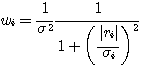
where wi is the weight of the ith pixel value,
si is the sigma of
the ith pixel in the stack, derived from the readout noise and
camera gain. The ri term, which is the residual between the current
average pixel value and the value of the ith pixel, is computed
at each iteration. This version of COMPOSIT2 use classical and
internally coded value for CCD readout noise and camera gain (noise of
15 electrons RMS en 2 e-/ADU). COMPOSIT2 is a simple command to use
and efficient for bad pixels rejection.
Important, before use commands like SMEDIAN, COMPOSIT and COMPOSIT2 it is necessary to have the
same sky background level for all the images of the sequence. Use the command
NOFFSET if is not the
case (or NOFFSET2 for
select a specific region for the harmonization of the sky level). Similar, is
the exposure time is not the same the image should be scaled before stacking
(MULT, MULT2, NGAIN2 commands for
exemple).
The choice of the most optimal combining algorithm will
depend on the nature of the data and on the exposure type. For produce a clean
flat-field or a master dark frame the appropriate command is SMEDIAN (or SMEDIAN2). For deep-sky imaging the
classical sigma-clipping is a good choise for the best conservation of signal to
noise (the median lose 30% in signal to noise typically relative to simple sum
and the COMPOSIT/COMPOSIT2
commands). The COMPOSIT2
command is now an useful and fast altenative to the sigma-clipping
scheme.
COMPUTE
Draw a rectangle around a star with the mouse. Then type
COMPUTE. Iris reads the files POLX.LST & POLY.LST created
by Astrometry/Photometry
dialog box and returns the equatorial coordinates and the magnitude of
the star. See also: SKY2REC, REC2SKY.
COMPUTE_TRICHRO1 [MASTER] [R] [G] [B] [SIZE] [SELECT NB.] [TOTAL NB.]
This command carries out the automatic processing of trichromy images
of planets. It connects commands BESTOF, SELECT, PREGISTER and
ADD_NORM, this for the three colors channels. At the end of the
processing the trichromatic image appears on the screen (you can then
save it on the disc with command SAVEBMP, SAVEJPG,
... or adjust its chromatic
balance with the command White balance... from menu View
for example).
Moreover, several sequences of images are created on the hard
disk. The sequence @r1, @r2.... @rn (n is the total
number of image treated) contains the registered images of the red
color channel and sorted by order of decreasing spacial
resolution. The sequences @g1, @g2... @gn and @b1,
@b2... @bn contain same information for the green and blue
channels.
COMPUTE_TRICHRO1 also automatically produces the 3 images @r, @g,
@b (without indices) which represent the addition of the best
n' images for the 3 colors channel (n' parameters being
provided by the operator).
Command COMPUTE_TRICHRO1 using function PREGISTER to carry out the
registration of the images (centering of the images of a sequence
compared to the first image of this sequence), it is rather intended
for the images being able not to have a contour of revolution, the
such planet Saturn or lunar surface. Moreover, the use of PREGISTER
imposes that the operator enters in parameter of COMPUTE_TRICHRO1 the
size of the window for the calculation of registration (its must be
equal to a power of two because the technique used for registration is
the intercorrelation in the Fourier space). The parameters are:
[MASTER] is the generic name of a sequence of image from which IRIS
will make sorts it better images (as command BESTOF and
will calculate the parameters of registration for the 3 colors
plans. The master sequence of images must contain images well exposed
posed if possible and well resolved. Generally, in the case of the use
of a Webcam camera, one will choose the images corresponding to the
plan of green color.
[R], [G], [B] is the generic names of red, green and blue channel
images respectively.
[SIZE] is the size of the zone for the calculation for registration
(choose among values 128, 256, 512 for example).
[SELECT NB.] is the number of images added during the final
composite. It is a number equal or lower than the total number of
image to treat . This value is dependent on the degree of turbulence.
For example for a sequence of 200 input images it is not abnormal to
add only 50 images with final (they will be 50 best images).
[TOTAL NB.] is the total number of images to be treated.
Let us suppose that you extracted from a film AVI (command
Conversion AVI... from File menu) or functions of Webcam
acquisitions from IRIS (Webcam menu) from the sequences from
300 images whose generic names are R, G and B for respectively the
plans colors red, green and blue. You make then for example:
COMPUTE_TRICHRO1 G R G B 128 40
300
The size of the window for calculation (here 128) must be higher
(but not much higher, if not calculation can be very long) than the
diameter of the planet disc of planet. It is necessary moreover for
run the command to surround planet by a rectangle while dragging with
the mouse (press left button).
It is significant that the rectangle thus defined either centered
on the center of the planetary disc. It is necessary moreover that its
dimension makes it possible to include the images of planet of the
beginning and at the end of the sequence. The size and the position of
the selection box are less critical in the case of the lunar images
(but for this type of images the three-colour process in general
presents well little interest and it is by far preferable to treat
monochromic images).
Calculation can be relatively long. If a problem appears in the
course of processing it is always possible to stop this one while
click on the stop key of the bar of tools.
COMPUTE_TRICHRO2 [MASTER] [R] [G] [B] [SEUIL] [SELECT NB.] [TOTAL NB.]
This command is very similar to COMPUTE_TRICHRO1 except the uses of
function CREGISTER for the registration of the images instead of
PREGISTER. Function CREGISTER determines the position of planet by
adjusting a circle on the circumference of the limb. It is necessary
to provide to COMPUTE_TRICHRO2 the value of the threshold of intensity
from which the calculation of the circle is carried out (click here
for more information). Taking into account these characteristics, it
is necessary to reserve the use of this command to planets having a
good symmetry of revolution (Jupiter and generally Mars).
The parameter [THRESHOLD] define the level of threshold which will
be used to adjust a circle around planet. For example:
COMPUTE_TRICHRO2 G R G B 80 60
300
Tip: to carry out images having a good chromatic balance it should
be checked that the level of the sky background is homogeneous between
the three colors plan. It is not rare with the images coming from the
Webcam camera that the level of the sky is higher in blue than in the
red and the green. Thus to bring back the level of the bottom of sky
in the sequence blue you will make:
NOFFSET3 B B 0 300
after having to draw a selection box in one of the images of the
sequence. You can also use for that the Normalisation of the offset
of a sequence... command of Processing menu after having to
notch the option On a zone. See also command
SCALECOLOR2.
To note that command COMPUTE_TRICHRO2 is appreciably faster than
COMPUTE_TRICHRO1 and if you have the choice, it is COMPUTE_TRICHRO2
which you will use preferably.
CONVERT_INDEX [IN] [OUT] [NUMBER]
Convert image name format in0001, in0002, in0003, ... to out1, out2,
out3, ...
CONVERTBMP [IN] [OUT] [NUMBER]
Convert an 8-bits BMP input sequence [in] into an output sequence
[out] in the current file format (fix the File type in the Settings
dialog box - see the File menu). The number of image in the input
sequence is [number]. You can set the base of the first index in the
input sequence (see the SETBASE command). The first index of the
output sequence is alway 1.
CONVERTBMP24 [IN] [R] [G] [B] [NUMBER]
Convert an 24-bits BMP input sequence [in] into three output genered
sequences [r] [g] [b] in the current file format (fix the File type in
the Settings dialog box - see the File menu). The number of image in
the input sequence is [number]. You can set the base of the first
index in the input sequence (see the SETBASE command). The first index
of the output sequence is alway 1.
CONVERTBMP24BW [IN] [OUT] [NUMBER]
Convert an 24-bits BMP input sequence [in] into the mean of the RGB
planes and copy the result in the output sequence [out]. The number of
image in the input sequence is [number]. You can set the base of the
first index in the input sequence (see the SETBASE command). The first
index of the output sequence is alway 1.
CONVERTSX [IN] [OUT] [NUMBER]
Convert a sequence of unsigned 16-bits images into a series of signed
16-bits images compatible with Iris (dynamic range between 0 and
65535). The level of the pixels is multiplied by 0.5 to respect
dynamics 0...32767. See also: SIGNED.
CONVERTSX2 [IN] [OUT] [NUMBER]
Convert a sequence of unsigned 16-bits images into a series of signed
16-bits images compatible with Iris. The level of the pixels is not
modified, but the images are truncated for intensities higher than
32767. The final level lies between 0 and 32767.
CONVERTSX3 [IN] [OUT] [NUMBER]
Convert a sequence of unsigned 16-bits images into a series of signed
16-bits images compatible with Iris. Value 32767 is subtracted from
all the pixels. The final level lies between -32768 and 32767.
CONVERTTIFF [IN] [OUT] [NUMBER]
Convert an 8-bits uncompressed TIFF input sequence [in] into an output
sequence [out] in the current file format (fix the File type in the
Settings dialog box - see the File menu). The number of image in the
input sequence is [number]. You can set the base of the first index in
the input sequence (see the SETBASE command). The first index of the
output sequence is always 1.
CONVERTTIFF24 [IN] [R] [G] [B] [NUMBER]
Convert an 24-bits uncompressed TIFF input sequence [in] into an
output sequence of RGB planes in the current file format (fix the File
type in the Settings dialog box - see the File menu). The number of
image in the input sequence is [number]. You can set the base of the
first index in the input sequence (see the SETBASE command). The first
index of the output sequence is alway 1.
CONVERTTIFF24BW [IN] [OUT] [NUMBER]
Convert an 24-bits uncompressed TIFF input sequence [in] into the mean
of the RGB planes and copy the result in the output sequence
[out]. The number of image in the input sequence is [number]. You can
set the base of the first index in the input sequence (see the SETBASE
command). The first index of the output sequence is alway 1.
COPY [NAME] [X1] [Y1] [X2] [Y2]
Copy in the current image the portion of the image [name] in the disk
delimited by the coordinates (x1, y1)-(x2, y2).
COPYADD [IN] [OUT] [NUMBER] [NB_ADD]
This command adds the [nbadd] first images with the generic name [in]
and saves the result with the name [out] with the index 1. Then the
result of adding the next [nb_add] images of generic name [in]
is saved with the name [out] with the index 2 and so on up to the
image [in] with the index [number]. One of the interests of this
command is that the acquisition time put in the header of the added
images is the barycentre of the individual images. As a consequence
the dating accuracy contained in the input images is transferred to
the added images.
COPYFWHM [IN] [OUT] [FWHM] [NUMBER]
Copy images of the sequence [in] to a new sequence [out], but select
only images where the FWHM is inferior to [fwhm] parameter. The
command return the selected image number. It is necessary to apply
before the REGISTER command (see also ADD3). COPYFWHM is perfect for isolate good images,
before compositing for example.
Example: COPYFWHM M51- I 1.6 12
See
here a typical use.
COPYMED [IN] [OUT] [NUMBER] [NB_MED]
Same command as COPYADD, but uses median averaging instead of
adding the [nb_med] images.
COPYX [X_ORIG] [X_DEST]
Copy the colum of position [x_orig] to the colum [x_dest].
COPYY [Y_ORIG] [Y_DEST]
Copy the line of position [y_orig] to the line [y_dest].
COREGISTER [IN1] [IN2]
Performs geometric transforms on [IN2] so that it may be superimposed
on [IN1]. The output file is the new [IN2] file.
See also: SETFINDSTAR, SETREGISTER.
Example: COREGISTER N266_1 N266_2
For a typical application, click
here.
COREGISTER2 [IN] [OUT] [NUMBER]
Same function that COREGISTER but applies to a sequence of images.
COSME [LIST FILE]
Apply the local mean to a set of pixels on the in-memory image
(cosmetic correction). The coordinate of this pixels are in an ASCII
file [list file]. COSME is adapted to correct residual hot
and cold pixels after preprocessing (the coordinate of this points is
constant for a given CCD). For example, if the goal is to correct
pixels of coordinate:
(120,310)
(9,501)
(232, 140)
and
line (100) and column (20)
Create the following text file (use your favorite word processing):
P 120 310
P 9 501
P 232 140
L 100 0
C 20 0
Save under the name CORRECT.LST (for example, but the extension
.LST is important). The file is saved in the working path (see
Settings... dialog box of the File menu).
Now, load the image to correct, then:
COSME CORRECT
You can correct up to 500 pixels (i.e. 500 lines max in the .lst
file).
See also: COSME2
COSME2 [INPUT] [OUTPUT] [LIST FILE] [NUMBER]
Same command as COSME but for a sequence of [number] images.
[input] is the generic name of the input sequence and [output] is the
generic name of the corrected sequence. For example: COSME2 M51- I
CORRECT 4
process the sequence: M51-1, M51-2, M51-3, M51-4
and produce the sequence I1, I2, I3, I4.
See also: COSME
COSME_CFA [FILE_LIST]
Same function that COSME but applying to RAW images (Bayer
matrix images). All the types of RAW files recognized by Iris can be
treated (Canon, Nikon...). The processing is distinct for red, green
and blue pixels of CFA matrix). The file whose name is given in
argument contains the list of the hot pixels. Those can be found
automatically with command FIND_HOT. Click
here for an example.
COSME_CFA2 [INPUT] [OUTPUT] [FILE_LIST]
Same function that COSME_CFA, but applying to a sequence of
images.
CPU [TIME (S)]
Measure the frequency of clock of the CPU. Click
here for more details.
CREGISTER [IN] [OUT] [THRESHOLD] [NUMBER]
Carry out the registration of a sequence of image from the coordinates
of the center of a circle determined from a contour defined for the
intensity THRESHOLD in each image. See also: CIRCLE. Click
here for an example.
DATA_BIN [IN] [OUT] [BINNING FACTOR]
Carry out the binning of a data file, for example a file resulting
from the photometric
analysis, in order to increase the signal to noise ratio.
[BINNING FACTOR] is the factor of binning (typicaly value: 2 to
4).
DATA_REJECT [IN] [OUT] [COEF]
Analyze a data file (file DELTA.DAT coming from the automatic
photometric analysis for example) and eliminates the points deviating
of more than [COEF]. sigma of the average value (sigma is the standard
deviation of the distribution). [IN] is the name of the input file (it
must have extension DAT on the disc). [OUT] is the name of the output
text file.
DATA_RESAMPLE [IN] [OUT] [STEP]
Re-sampling points of a data file (use of the spline
interpolation). Useful command for example to represent data spectral
or an intensity distribution curve with a integer step.
DATA_STAT [DATA FILE]
Turn over statistical data on the data file [DATA_FILE].
DATA2IMAGE [INPUT] [COEFFICIENT] [NUMBER]
Create an image in memory starting from a sequence of text file having
extension DAT. The contents of the first file are used to produce the
first line of the image. The contents of the second file build the
second line of the image, and so on. The text files must contain two
columns of real data. The image is built with information of the
second column. With final, the size of the image along axis X is equal
to the number of lines contained in files DAT and the size along the
axis Y is equal to the number of file DAT. Parameters are:
[INPUT] is the generic name of files DAT
[COEFFICENT] is a
multiplicative parameter by which one multiplies the second column of
files DAT before assigning them to the pixels of the image in
memory.
[NUMBER] is the number of files DAT
Click
here for an example.
DATA2PIC [DATA FILE NAME]
Converted a text ASCII file with two columns into an image whose axis
Y contains the values (standardized to 32767) contained in the second
column of the file. This command is useful to import in IRIS spectral
data.
DATA_ANIM [IN] [OUT] [X1] [X2] [STEP]
Powerful function allowing for example to interpolate at the same time
along wavelength and temporally a whole of spectral data in order to
carry out an animation.
The parameter [IN] is the name of a text file having the extension
LST. It contains two columns. The first give a spectral file name
having extension DAT, the second is the date of acquisition of these
spectra in Julian day or reduced Julian day. Here contents
characteristic of an input file:
290601 245678.345
300701 245689.446
220801
245693.945
.....
It indicates that spectral profile 290601.DAT was acquired the day
Julian 245678.345, that spectral profile 300701.DAT was acquired the
day Julian 245689.446, that spectral profile 220801.DAT was acquired
the day Julian 245693.945, and so on.
The parameter [OUT] is the name of a text file having the extension
LST. It contains two columns. The first give the spectral file name
(DAT extension) which will be interpolated, the second is the date of
the files interpolated in Julian day or reduced Julian day. Here
contents characteristic of a file of an output file:
R1 245679.0
R2 245690.0
R3 245691.0
....
It indicates that command DATA_ANIMmust produce spectral
profiles in files of names R1.DAT, R2.DAT, R3.DAT, respectively for
the dates in Julian days 245679.0, 245690.0, 245691.0.
The parameters [X1] and [X2] define an interval in wavelength for
the interpolation which an interpolation step of [STEP].
The mode of interpolation along the temporal axis is linear. One
uses an interpolation spline along the wavelengths axis.
Once the interpolated profiles, you can displaying this in a
graphic form with the software of your choice then to create
animations of the evolution of the spectrum according to time. It is
possible also to produce an image of the dynamic spectrum starting
from command DATA2IMAGE. Click to
see examples here.
DATE
Return the current date.
DATE2JD [DAY] [MONTH] [YEAR]
Convert une date to Julian (example : DATE2JD 27.76 08 2001).
DECONVFLAT [COEFFICIENT]
Counter the smearing effect in an image exposed without obturator.
[coefficient] is the ratio between the reading time of a CCD line and
the exposure time. See an example here.
DILATE
Perform a dilatation operation to the current image.
See also:
ERODE.
Example:
LOAD M51
ERODE
ERODE
DILATE
DILATE
DIST
Computes the distance between two stars.
DISTOR [NAME1] [NAME2] [ORDER]
Morphing is not just a special effect for artistic
applications. Morphing techniques have various ranging from lens
distortion correction, motion capture data interpolation, waves
atmospheric turbulence correction, etc. This section describe the
turbulence correction of planetary image (but the procedure is the
same for correct optically distorted wide-field CCD images for
examples).
The goal of the processing is to resample a target image relative
to a reference image for minimize geometrical difference between the
two. So, the blurring effect of the turbulence in the Earth's
atmosphere is now partially compensated: If you stack the two images
(or more), the spatial resolution is increased.
The atmospheric distortion was calculated using
DISTOR.
The parameters are:
[NAME1] is the name of a good contrasted reference image on the
disk.
[NAME2] is the name to resample relative to the reference
image.
[ORDER] is the order of a 2-D quadratic equation used for
fit the distortion. Range is between 1 (linear correction) and 5
(complex distortion). The recommended value is 3 or 4 for most the
case. DISTOR use an iterative scheme for aberrant points
elimination.
Before running the DISTOR command it is necessary to
define point interactively with mouse in the reference image. If
possible, this point mark contrasted details (light/shadow region on
the moon surface, planetary limb, stars, ...). The geomtric correction
is only valid into the pointing area (outside this area Iris
extrapolate).
For an application example, click
here.
DISTOR2 [NAME1] [NAME2] [ORDER] [NUMBER]
Same as DISTOR but for a sequence.
DIV [NAME] [COEFFICIENT]
Divide the image in memory by the image on disk designated by
NAME. The resulting image is multiplied by the value
COEFFICIENT.
DIV2 [IN] [OPERAND] [OUT] [COEF] [NUMBER]
Divides a sequence of images having the generic name [IN] by the image
[OPERAND] and multiplies the result by [COEF] (see also DIV).
The [OUT] parameter is the generic name of the output images. The
number of images to process is [NUMBER].
DRIZZLE [NAME] [RESOLUTION] [NUMBER]
This command performs an optimal adding of images as far as resolution
is concerned. The principle is that, at sub-pixel level, shifts
between individual input images are nearly randomly distributed. For
example, a star in the first image may be centered perfectly in
the middle of a pixel, whereas it will be across two pixels in the
second one, and so on. Since it is easy to know the exact shift
between the images, it is possible to create an output image with a
finer sampling, in which resolution may be increased with respected to
each input image. In fact, energy from each input pixel is dropped in
the output image, and the whole processus may be compared to a
drizzle...
The DRIZZLE command is adapted to under-sampled images, for example
when the telescope focal length is too short for the pixel size. One
may consider that the system is under-sampled when FWHM is smaller
than 2 pixels.
Before using DRIZZLE, it is necessary to know the shift between the
images. We suppose that only a linear translation exists between
images (with no distortion and no rotation). The shift values are in
the file SHIFT.LST (to create this file, refer to the command REGISTER). You can also create this file
manually, by measuring the shifts along X & Y individually (the
sign convention is image#1 - image#i).
It is important that all the input images are acquired in the same
conditions: same exposure time, same sky background level. If this is
not the case, you have to adjust offset and gain prior to use DRIZZLE
(see commands OFFSET and MULT).
The parameters of the command are:
[NAME] is the generic name of the input image.
[RESOLUTION] is the over-sampling factor with respect to the input
images. A factor or 2 to 2.5 may be considered as a coherent objective
when the number of images is between 5 and 10. If the number of images
is much larger, this factor may be increased to values as high as 3 or
more.
[NUMBER] is the number of images in the sequence. A minimum of 5
images is generally necessary.
Click here for
a discussion about diphering technique and examples.
DTRANS [X] [Y]
Select a star in an image by drawing a small rectangle around it with
the mouse. Then, the command DTRANS translates the images with
the values:
DX=[x]-XM
DY=[y]-YM
where (XM, YM) is the centroid of the object in the rectangle.
The DTRANS command is very useful the register a sequence of images
with respect to a reference star at coordinates ([x], [y]) in the
reference image. Click
here for an example.
EDGE [X1] [Y1] [X2] [Y2]
The coordinates ([X1], [Y1]) and ([X2],[Y2]) mark a frame outside of
which the pixels of the image in memory are set to zero.
Sometimes the edges of images contain no significant information or
have defects (artefacts due to previous processing). In these
cases, the EDGE command can be used to fix the image.
ERODE
Perform an erosion operation to the current image.
See also:
DILATE.
EXPORT [NAME] [HEADER] [BYTE PER PIXEL] [REVERSE]
Exports images in a non standard format. The program writes the header
at the beginning of the file, whose length in bytes should be
specified in [header]. This header is filled with zeroes. In the
parameter [BYTE PER PIXEL], you must indicate whether the pixels are
coded on one or two bytes. If the coding is on two bytes, you must
also indicate in the parameter [reverse] the order of the bytes in the
16 bit word. If [reverse]=0, they will be in the INTEL format (most
significant/least significant), while if [reverse]=1, they will be in
the MOTOROLA format (least significant/most significant). See also:
IMPORT.
Example: EXPORT FILE.IMG 256 2 0
Converts the image in memory as a free format image with the name
FILE.IMG, and with a header length of 256 bytes and pixels coded on 16
bits in the INTEL format.
EXPORTASC [NAME]
Saves the images with an ASCII format in 3 rows. the two first rows
contain the pixel coordinates (origin at (1,1)), whereas the third row
contains the image intensity. Warning: the result file may be very big
for large input images.
See also: IMPORT_ASC
FCORREL [IMAGE #1] [IMAGE #1] [COEF]
Compute the cross-correlation of [IMAGE #1] and
[IMAGE #1]. The [COEF] coefficient is an intensity scale factor
for the result. Example:
FCORREL MARS1 MARS2
1
FFTD [MODULUS] [PHASE]
IRIS V4.11 can compute a FFT (Fast Fourier Transform) to evaluate
fixed pattern noise of an image. First, the Direct (Forward) FFT is
computed with FFTD. Next, the fixed pattern noise is
corrected through boxcar filtering (FFILL). Finally, the
reverse FFT (FFTI)is computed to display the corrected
image. The modulus (magnitude) of the FFT is stored in the output
file [MODULUS] and the phase is stored in the output file [PHASE]. Click
here for an example.
FFTI [MODULUS] [PHASE]
Compute an Inverse Fast Fourier Transform from the magnitude and phase
data contained in files [MODULUS] and [PHASE]. See FFTD.
FFILL [VALUE]
Symmetric fill of a region defined by the mouse. Used to process an
image in the Fourier (FFT) domain. See FFTD and
FFTI.
FILE_CONV [KERNEL NAME]
Convolution of the in memory image by a matrix whose coefficients are
contained in image [kernel_name]. The value of the coefficients is
multiplied by Iris by 0.001 before calculation itself. The image must
be obligatorily square and of odd size. The maximum size is of 41x41
pixels. You can use command IMPORT_ASC to charge a matrix with
convolution starting from a textual file, which you then save in the
format PIC or FITS.
FILE_TRANS [IN] [OUT] [NUMBER]
Registration of a sequence of images by using information which is in
file SHIFT.LST. See also the command: REGISTER
FILL [VALUE]
Fills the whole current image with pixels having the [VALUE]
intensity.
FIND_HOT [LIST FILE] [THRESHOLD]
The command makes it possible to generate a file lists (format text)
in the working directory which contains the co-ordinates of the pixels
which have an intensity higher than only one provided by the user.
This file, known as cosmetic file, is then used by IRIS to
correct certain systematic defects during the preprocessing of the
deep-sky images. Thus, if command FIND_HOT applies to an image of the
dark signal , the produced file will contain co-ordinates of the
pixels of affected by an abnormally high dark current (hot
pixels). When this file is read by a function of preprocessing, the
pixels in questions in then treated images are replaced by a computed
value starting from the intensity of the close pixels.
The two parameters are:
[LIST FILE] the name of the file lists produced. The name is
supplemented by extension .LST.
[THRESHOLD] the threshold for the
discrimination of the hot points.
To note that IRIS turns over in the console the number of hot
points found. For a normal CCD it is necessary to be arranged to
adjust the threshold so as not to find much more than one ten hot
points. For example:
LOAD DARK
FIND_HOT COSME 300
Here a typical contents of the produced file (file COSME.LST in the
example):
P 1086 1
P 402 7
P 1434 13
P 403 23
P 1372 27
C 468
0
The letter P indicates that it is necessary to correct only one
pixel of the image. The co-ordinates of the first sick pixel is (1086,
1). Second is at the co-ordinates (402, 7) and so on.
The last line starts with C and was added manually to the file (for
example with an editor like WordPad). It indicates to IRIS that it
will be necessary during the pretreatment to replace the column of row
468 (on the basis of the left) by the average value of the adjacent
columns.
In the present case the action of the last line of file COSME.LST
is equivalent making:
REPAIRX 468
If the cosmetic file contains the line:
L 34 0
That means that it is necessary to replace the line of co-ordinates
34 (starting from the bottom of the image) by the value of the
adjacent lines. To note that in the case of the correction of the
lines and the columns the third value in a line of the cosmetic file
must have a null value.
To apply the cosmetic corrections registered in the file lists you
can use commands COSME and COSME2. Some dialog boxes can now also take
into account information of a cosmetic file.
FINDSTAR
Detects stars having a level greater than [sigma] times the level of
the sky background noise (see the SETFINDSTAR command). A file of the type
STAR.LST is created on the drive. This file may be edited (e.g. EDIT
command of MS-DOS). It contains parameters about detected stars
(position, instrumental magnitude, FWHM). More precisely for each
colon:
- star number,
- X coordinate of the star in the image,
- Y coordinate of the star in the image,
- instrumental magnitude of the star,
- astrometric right ascension (in decimal degrees),
- declination (in decimal degrees),
- true reduced magnitude,
- isolation criteria for the star (1 is the most isolated),
- the FWHM along X & Y.
Note that STAR.LST file is used with automatic astrometry and
photometry command. See astrometric
functions.
FITS2FIT [NAME] [NUMBER]
Convert a FITS extension sequence to a FIT extension sequence (example
the file name M57-2.FITS is converted to M57-2.FIT).
FITS2PIC [IN] [OUT] [NUMBER]
Convert a sequence of FITS image into a sequence with the proprietary
PIC format. Parameters:
[IN] is the generic name of the input sequence.
[OUT] is the
generic name of the output sequence.
[NUMBER] is the number of
images in the sequence.
FLAT [NAME] [HL] [LL] [LEVEL] [#ITER] [#IMAGE]
The FLAT command allows you to calculate a flat-field without having
to take specific images at dusk (images without stars or other
objects). The flat-field can be obtained from merely the images
of the observed objects taken during the night.
Other methods can also be used to obtain flat-field images from
night images. They use the calculation of the median of a set of
images (see the SMEDIAN command).
However, the technique used in FLAT can resolve difficult cases:
- you do not have a dusk flat-field and the night images contain dense star
fields or extended objects.
- you do not have a dusk flat-field and the night images are planetary
images.
In these two cases, correctly extracting a flat-field with a median
set technique is very unlikely.
The FLAT command is useful in these situations (the median set
technique is still a good method in normal situations because it is
faster and easier to implement). The command uses an iterative process
and works with the logarithmic values of the images. It is recommended
to have as many images as possible to get the best result (typically
between 5 and 10 images, the maximum number allowed is 15).
Several conditions must be respected:
- The dark current and offset signal must have been subtracted from
each image.
- The images must have the same signal level (for the control, use
the sky background level at the same place on the detector, or the
level of a detail common to all the images). Use the OFFSET command to
adjust the levels.
- the images must be of the same celestial object and must be taken
through the same filter if one is used (this last condition is a
general rule for flat-fields, no matter which technique is used).
- The images must be displaced by some number of pixels along both
the X and Y axes, with respect to each other. These shifts can be non
integer pixel values (measure the displacements with the cursor, or
commands such as REGISTER, PREGISTER...). The shifts must be measured
with respect to first image in the series. The only restriction on the
shifts is that they not be colinear, nor have a common multiplier:
- If ai is the displacement vector of the image "i", and aj is the
displacement vector of the image "j", there must not be a real
constant k such that ai = k*aj.
The displacement values do not affect the quality of the
result. However, it is recommended to not displace the images
too much, because the complete calculation of the flat-field image can
only be done on the parts common to all the images. The parts of
the flat-field outside the common area are still valid, but they are
calculated with less precision because of the smaller number of images
used in the calculation. Also, note that the calculation time
grows with the displacement values. Large image are prohibed because
large computation time (up to 400 pixels size image are correct).
It is recommended to choose the reference image (first image) so
that the relative displacements are as isotropic as possible for the
set of images.
Before executing FLAT it is necessary to produce the file SHIFT.LST
containing the relative displacements of the images with respect to
the first image. Each line of this file contains the
displacements with respect to the reference image (first the
displacement along the X axis, then along the Y axis, with one or more
blanks between the numbers). The first line of this file contains the
elements of the first image (the reference image), that is
(0,0). This file can be created with a word processing.
Remember that automatic registration commands in Iris
(REGISTER, FULL_PR, PREGISTER...) produce a shift file SHIFT.LST in
the woking directory.
The command arguments of FLAT are:
[NAME]: the generic name of the images to be processed. The
generic name is the root of the name of the image, which will have a
number and an extension added to it. The first number added is 1, and
the last is [#IMAGE]. Thus, with the generic name "IMAGE" and
[#IMAGE]=5, the processing will be done on the images:
IMAGE1.PIC
IMAGE2.PIC
IMAGE3.PIC
IMAGE4.PIC
IMAGE5.PIC
[#IMAGE]: the number of images to be used in the calculation
(between 5 and 15).
[#ITER]: the number of iterations. This number is chosen as a
result of the previous tests. Typically, between 1 and 3
iterations are used.
[HL]: eliminates pixels with a level over [hl] from the
calculations. This can be useful when processing a field with
saturated stars (the saturated parts do not contain radiometrically
useful information). In general, [HL] should have the value of the
maximum dynamic range of the image.
[LL]: eliminates pixels with a level less than [LL] from the
calculations. In particular, the value of [LL] can be adjusted to
reject pixels with a negative value, thus [LL] is usually 0.
[LEVEL]: the generated flat-field will have the average intensity
[LEVEL]. Most of the time this value will be the same order of
magnitude as the average level of the processed images. [LEVEL] must
be greater than 1.
Reference: J. R. Kuhn et al., Publications of the Astronomical
Society of the Pacific - Vol 103, 1097, October 1991
Click here
for an example, and here
for a second example.
FPOLREC [MODULUS->REAL] [PHASE->IMAGINARY]
Transform the frequency domain images from polar to rectangular. The
two arguments are filenames containing the [MODULUS] and [PHASE] on
input, and the [REAL] and [IMAGINARY] components on output,
respectively. NOTE: this command rewrites the contents of the
specified files! Make a copy to preserve the originals.
FRECPOL [REAL->MODULUS] [IMAGINARY->PHASE]
Transform the frequency domain images from rectangular to polar. The
two arguments are filenames containing the [REAL] and [IMAGINARY]
components on input, and the [MODULUS] and [PHASE] on output,
respectively. NOTE: this command rewrites the contents of the
specified files! Make a copy to preserve the originals.
FULL_PR [IN] [OUT] [DARK] [OFFSET] [FLAT] [NB]
Computes the automatic processing of a sequence of [NB] images having
the generic name [IN], i.e. subtracts the offset signal, removes the
dark current signal, and divides by the flat-field image. The images
are then automatically registered. At last, the images are
added.
- The [DARK] parameter contains the name of the dark current map
(note: this image must not contain the offset signal).
- The [OFFSET] parameter contains the name of the offset image (or
bias image).
- The [FLAT] parameter contains the name of the flat-field image
(note: this image must not contain the offset signal or the dark
current signal).
Example: we want to process a sequence of 3 raw images of the
SH2-136 nebula. The image names are SH136_1.PIC, SH136_2.PIC and
SH136_3.PIC. We have also the images OFFSET.PIC, DARK.PIC and
FLAT.PIC. Load the first image in the sequence:
LOAD SH136_1
With the mouse, select a rectangle typically 50 pixel in width with
contain only one non-saturated star. This rectangle will be used for
matching the images. Then type:
FULL_PR SH136_ RESULT DARK OFFSET
FLAT 3
The final image is fully preprocessed and corresponds to the
combination of the 3 input images (simple addition).
The FULL_PR command also created 3 images in the current directory
: RESULT1, RESULT3 and RESULT3 in this example). These images are
fully preprocessed. So you may choose between several combination
methods. for example, for a simple addition, you will do:
ADD2 RESULT 3
For a median combination, you will type:
SMEDIAN RESULT 3
And of a sigma-clipping combination, you will do:
COMPOSIT RESULT 1.5 1 3
You can also use the ADD3 command, that select the finest images
for the addition.
FULL_SPEC [IN] [OUT] [DARK] [FLAT] [OFFSET LEVEL] [ANGLE] [FLAG] [LINE WIDTH] [NUMBER]
Automatic processing of a sequence of spectra. Compute the
preprocessing, correct orientation, register the sequence to the first
spectral image, and finaly add the images. IN is the generic name of
the input sequence. OUT is the registered sequence. DARK is the dark
current image name. FLAT is the flat-field image name. OFFSET LEVEL is
the mean level of the level. ANGLE is the orientation of the spectra
relative to the horizontal axis. FLAG=0 for a registration with an
absorption line and FLAG=1 for a registration with an emission
line. LINE WIDTH is the typical width of the line profile in
pixel. NUMBER is the number of images in the sequence.
First, draw a rectangle in the current image with the mouse around
a significant spectral line then run the command FULL_SPEC.
GAUSS [SIGMA]
Convolves the current image by a two-dimensional Gaussian whose width
is given by the parameter [SIGMA].
The convolution of an image by a Gaussian with a small sigma (less
than 1) can be used to attenuate the noise. A high value for sigma
produces a fuzzy effect.
GAUSS2 [SIGMA]
Same command as GAUSS, but the processing is here done for the whole
image, including the sides (that makes this command slower than the
GAUSS).
GAUSS3 [SIGMA] [BORDER SIZE]
Same function that the command GAUSS but while excluding from
calculation a border of the image having a size in pixel of equal to
[size edge]. This makes it possible to filter images with minimum
atefact.
GEN_OUT [FILE] [TEXT] [X1] [X2] [STEP]
Utility function to generate an output file for command DATA_ANIM,
this last allowing to produce dynamic spectra.
[NAME] is the name of output LST file.
[TEXT] is the generic
name of the first column of LST file.
[Y1] and [Y2] are the date
limits of the second column (normally the Julian day).
[STEP] is
the temporal step of the second column.
For example:
GEN_OUT OUT R 2310 2317 0.5
Generates this file OUT.LST contains:
r01 2310.500000
r02
2311.000000
r03 2311.500000
r04 2312.000000
r05
2312.500000
r06 2313.000000
r07 2313.500000
r08
2314.000000
r09 2314.500000
r10 2315.000000
r11
2315.500000
r12 2316.000000
r13 2316.500000
r14
2317.000000
GET [X] [Y]
Returns the intensity of the pixel at coordinates ([x],[y]).
GRADX [OPTION]
Filters the current image with a gradient along the X axis. The option
(1 or 2) allows to choose the orientation of the gradient (left
or right). For example:
LOAD M51
GRADX 1
OFFSET 1000
VISU 1200 800
GRADY [OPTION]
Filters the current image with a gradient along the Y axis. The option
(1 or 2) allows to choose the orientation of the gradient (up or
down).
GRADX2 [OPTION]
Same command as GRADX, but with a stronger effect.
GRADY2 [OPTION]
Same command as GRADY, but with a stronger effect.
GREY_FLAT
Convert a flat-field taken with a digital camera to a neutral tone
flat-field (click
here for detail of use).
HISTO
Calculate the histogram of the in memory image and produces file
HISTO.DAT in the working directory. This function calculates also the
cumulated histogram (file CUMUL.DAT) and the opposite cumulated
histogram (file CUMUL_INV.DAT).
HSI2RGB [H] [S] [I] [R] [G] [B]
The HSI2RGB command converts a color image defined by its color
components Hue, Saturation and Intensity into a trichromatic image in
Red, Green, and Blue. The parameters are:
- [H], [S], [I]: the names of the H, S, I components, respectively.
- [R], [G], [B]: the name of the R, G and B components.
See also: RGB2HSI and TRICHRO.
IMAGE2SPEC [FILE] [LINE/MM] [DIST] [P_ZERO] [PIXEL]
Carry out the spectral calibration of an image spectral profile when
the position of grating zero order is accessible. Parameters are:
[FILE]: the name of the file of the calibrated spectral profile
which will be created on the disc. It is an ASCII file with two
columns. In the first column one finds the wavelength in angströms and
in the second the intensity of the spectrum.
[LINE/MM]: the number
of groove by millimeter of the grating.
[DIST]: the distance
separating the grating from the CCD in millimeters.
[P_ZERO]: the
position in pixel of the center of the zero order image along the
horizontal axis of the image.
[PIXEL]: size of the pixel along the
horizontal axis of the image in millimeters.
For an example of application of this command click
here.
IMPORT [NAME] [X] [Y] [HEADER] [#BYTE] [REVERSE]
Imports images with a nonstandard format. The program skips the header
at the beginning of the file. The number of bytes in the header should
be specified in the parameter [HEADER]. The [#BYTE] parameter
indicates whether the pixels are coded on one or two bytes. If the
coding is on two bytes, you must indicate the order of the bytes in
the 16 bit word in the parameter [REVERSE]. If [REVERSE]=0, they are
in the INTEL format (most significant/least significant), while if
[REVERSE]=1, they are in the MOTOROLA format (least significant/most
significant). Finally, the parameters [X] and [Y] contain the image
format in pixels along the X and Y axes, respectively (the X axis is
the one which is read more quickly in the file).
See also: EXPORT
Example: IMPORT EXTERN.IMG 512 800 256
2 0
Imports the image EXTERN.IMG with the following
characteristics: pixels coded in 16 bit INTEL format, 256 byte
header, 512x800 format.
IMPORT_ASC [NAME]
Imports an image that was saved in a 3-row ASCII format. The two first
rows contain the pixel coordinates (origin in (1,1)), whereas the
third row contains the pixel intensity. The extension .ASC is added
automaticaly. Note that this file may be very big for large
images.
See also EXPORTASC.
Example: IMPORT_ASC FILE
IMPORT_ASC2 [NAME] [SIZE X] [SIZE Y]
Load an image stored in an ASCII file in the simple form of a single
column of real numbers. The length of this vector must be equal to
[SIZE X] x [SIZE Y]. See also command
IMPORT_ASC.
INFO
Returns information about current image (size, date/time of exposure,
integration time). For a FITS file the command return also principal
keyword of the header.
INSERT [IN1] [IN2] [MASK] [VALUE]
For a given pixel of coordinate (x,y) in the [IN1], [IN2] and [MASK]
images, if the intensity in the [MASK] image is equal to [VALUE] then
the in-memory intensity image pixel is [IN2], else the intensity is
[IN1].
Example:
LOAD M51
OFFSET -500
CLIPMIN 0 0
SAVE MASK
INSERT MASK
M51 MASK 0
JD2DATE [JULIAN DAY]
Convert Julian day to date.
JPG2PIC [IN] [OUT] [NUMBER]
Convert a sequence of JPEG file to PIC or FITS sequence (the final
format is dependant of the choice in the setup dialog box of
File menu).
Consider the input sequence IM1.JPG, IM2.JPG and IM3.JPG. To
convert to image R1.PIC, R2.PIC and R3.PIC (or R1.FIT, R2.FIT and
R3.FIT), enter the command:
JPG2PIC IM R 3
L_ADD [LINE1] [LINE2]
Computes for each row of the current image the add of lines between
[line1] and [line2]. The sum is maximized to 32767. The "L_"
commands (line commands) are adapted for spectra processing. Click here
for details.
The result is represented as a new image with the same width as the
input image and 20 identical lines in height. Each pixel corresponds
to the mean of the input lines in the current row.
L_ADD2 [LINE1] [LINE2] [SKY BACKGROUND] [GAIN] [READOUT NOISE]
Same as L_ADD but by taking into account the noise for the calculation
of a weight function. SKY BACKGROUND is the present sky level in ADU
(Analog Digital Unit). GAIN is the camera gain (i.e 2
electrons/ADU). READOUT NOISE is the noise of camera in electrons
(i.e. 18 electrons).
L_BIN
Carry out an operation of binning along vertical axis on a spectrum
whose dispersion axis is horizontal. The addition zone along the
vertical axis is such as with final the result of the addition
contains 93% of the information of the real spectrum. Iris calculates
the optimal addition width zone for reduce noise in the result. The
max intensity in the binned image is normalized to 32766. The result
is an image of the spectral profile where this one is to duplicate 20
times along the vertical axis. Before run the command you must frame
the spectrum of a rectangle to be traced with the mouse.
For an introduction tutorial to spectrography, click
here.
L_BIN2
Same function that L_BIN, but the normalization is carried out
starting from the most intense pixel which is in the selection zone
and not over the entire length of the spectrum.
L_CORREL [NAME]
Compute the shift in pixel unit along the x-axis of the in-memory
spectrum and the [name] file spectrum. Before running L_CORREL define
with the mouse a rectangle for the cross-correlation computation.
L_COUNT
Compute the mean level of a 2D spectrum (in ADU or Analog/Digital
Unit). The concerned part is selected with mouse.
L_CURVE [LINE1] [LINE2] [RADIUS]
Same as L_ADD but the binning is made along a curved spectrum. The
radius of curvature of the spectrum is [RADIUS]. Click
here for details.
L_CURVE_TEST [LINE1] [LINE2] [RADIUS]
Draw line along the spectrum to test parameters of L_CURVE
command.
L_DIV [NAME] [COEF]
Same principle as L_SUB with a division with the line and a [coef]
coefficient.
L_EXPAND [HEIGHT]
Creates a new image with [height] identical lines equal to the line
obtained with, L_MEDIAN, or L_ADD.
L_GAUSS [SIGMA]
Convolution of a vector image by a gaussian function. The sigma of the
gauss function is given in parameter. For a typical application click
here.
L_MEDIAN [LINE1] [LINE2]
Same command as L_ADD except that a median is applied instead of a
mean.
L_MEDIAN_CURVE [LINE1] [LINE2] [RADIUS]
Useful for spectra processing. Same command as L_MEDIAN but along a
curved spectrum. The radius of curvateur in pixels is [RADIUS].
See exemples here.
L_MERGE [FILE #1] [FILE #2] [X1] [X2]
Merge two spectra [FILE #1] and [FILE #2]. The point of at the
coordinate [X1] (pixels unit) into the spectrum #1 correspond to the
point [X2] into the spectrum #2. The intensity are normalized at
around this point. Click
here for an example.
L_MERGE2 [FILE #1] [FILE #2] [X1] [X2]
Same as L_MERGE. The only difference: the spectra are not normalized
at the common point.
L_NOISE
Compute the mean level and the RMS noise of a 1D spectrum - The
wavelength limits of the computation are selected with the mouse.
L_OPT
An easy to use optimal extraction function of the 1D spectrum from the
2D spectrum. See L_OPTBIN.
L_OPTBIN [LINE1] [LINE2] [GAIN (e/ADU)] [RON (e-)] [MEAN SKY LEVEL (ADU)] [KAPPA]
Optimal extraction for CCD spectroscopy. Click
here for a description.
L_OPTBIN2 [LINE1] [LINE2] [GAIN (e/ADU)] [RON (e-)] [MEAN SKY LEVEL (ADU)] [KAPPA]
Optimal extraction for CCD spectroscopy. Click
here for a description.
L_ORI
Return the orientation of a spectrum relative to the horizontal
axis. Draw first a rectangle in the current image with the mouse
around the spectra.
L_PLOT [HEIGHT]
Creates a new image with a plot of the line obtained with L_MEDIAN, or
L_ADD. The width of the plot is the line width, and its height is
[height]. This command produce also the ASCII file PLOT.LST.
L_POS [FLAG] [WIDTH]
Compute the position of a spectral line. If FLAG=0 the line is in
absorption. If FLAG=1, the line is in emission. WIDTH is the typical
width of the line(FWHM). Select un area around the line with the mouse
then execute L_POS.
L_POS2
Precise evaluation of the position of a spectral in a 1D spectrum. The
line influence zone is selected with the mouse. The command return the
position in pixel and also the FWHM of the line.
L_REGISTER [IN] [OUT] [FLAG] [WIDTH] [NUMBER]
Register a sequence of NUMBER spectral images with the aim of a
spectral line. If FLAG=0 the line is in absorption. If FLAG=1, the
line is in emission. WIDTH is the typical width of the
line(FWHM). Select un area around the line with the mouse then execute
L_REGISTER.
L_SINC [FACTOR]
Scale a spectral image by the coefficient [FACTOR]. This function use
the sinc intrepollation. For an application example click
here.
L_SKY [LINE1] [LINE2] [LINE3] [LINE4]
Computes the median value for each row of the current image between
[LINE1] and [LINE2]. This give the value V1. Computes the median value
for each row of the current image between [LINE3] and [LINE4]. This
give the value V2. The value (V1+V2)/2 is computed and substracted to
each row of the current image. L_SKY is useful to correct gradient
background for spectral image. In the normal situation the area
between [LINE1] and [LINE2] is upper the spectrum and the area between
[LINE3] and [LINE4] is in the opposite side relative to the
spectrum.
L_SKY2
Command allowing to estimate the level of the sky background on both
sides of a spectrum. The sky background is modelled by calculating for
each columns of the images taken independently the median value of the
intensities of the pixels in two zones that one definite
interactively. The operator define these two zones by 4 clicks of the
mouse as shows it the following image:
The click order of the points is not critical. L_SKY2 then substrat
from all the columns the average of the two median intensities
calculated in each one of them. The effect is to bring the level of
the sky background to zero. It is an essential operation before being
able to extract the spectral profile from a spectral image because it
fixes the origin of the scale of the intensities. Click here
for an illustration.
L_SKY3
Command, very similar to L_SKY2, allowing to estimate the level of the
sky background on both sides of a spectrum. The sky background is
modelled by fitting linear lines distinct for each columns from the
image. The pixels of the image which are used to calculate these fit
are in two zones on both sides spectrum that the operator define by 4
clicks of the mouse as shows it the following image:
L_SKY_CURVE [LINE1] [LINE2] [LINE3] [LINE4] [RADIUS]
Same as L_SKY but along a curved spectrum. Click
here for exemple of use.
L_SUB [NAME]
Subtracts from each line of the current image the line in the [name]
image obtained with L_MEDIAN, or L_ADD.
LAPLACIAN
Calculate the Laplacian of the image in memory.
LOAD [NAME]
Load an image in memory from the current directory (defined in the
item Current Directory from the Settings tab – File menu). You can
also indicate in which directory to load a particular image by
specifying the full path of the image. For instance:
LOAD c:\nuit7\m51.
LOADBMP [NAME]
Load a 8-bits BMP file in memory from the current directory.
LOADBMP24 [NAME] [R] [G] [B]
Load a 24-bits BMP file from the current directory and copy the RGB
planes in the images [r], [g], [b] respectively.
LOADBMP24BW [NAME]
Load a 24-bits BMP file from the current directory in memory and
convert the RGB planes into a B&W images.
LOADCAM [NAME]
Converted RAW file coming from a digital camera into a color image
which is displayed (see also Load... command of the File
menu).
Example: LOADCAM CRW_0347
LOADCFA [NAME]
Display a CFA image extracted from a RAW file (CFA = matrix of
coloured filters covering the pixels of the electronic sensor).
LOADRAW [NAME] [R] [G] [B]
Converted a RAW in three files containing the primary layers of
colors. For example:
LOADRAW CRW_0347 R G B
TR R G
B
LOADSB [NAME]
Loads an image in CCD SBIG (ST4, ST4X, ST6, ST7, ST8...) format into
memory. This command also accepts compressed format.
Example: LOADSB M51
LOADSX [NAME]
Load into memory an unsigned 16-bits image (dynamic range between 0
and 65535). The level of the pixels is multiplied by 0.5 to bring
final dynamics between 0 and 32767. See also: CONVERTSX, SIGNED.
LOADSX2 [NAME]
Load into memory an unsigned 16-bits image. The level of the pixels is
not modified, but the images is truncated for intensities higher than
32767.
LOADSX3 [NAME]
Load into memory an unsigned 16-bits image. Value 32767 is subtracted
from the intensity of all the pixels. The final level lies between
-32768 and 32767.
LOADTIFF [NAME]
Load a 8-bits uncompressed TIFF file in memory from the current
directory.
LOADTIFF24 [NAME] [R] [G] [B]
Load a 24-bits uncompressed TIFF file from the current directory and
copy the RGB planes in the images [R], [G], [B] respectively.
LOADTIFF24BW [NAME]
Load a 24-bits uncompressed TIFF file from the current directory in
memory and convert the RGB planes into a B&W image.
LOG [NORM]
Calculates the base 10 logarithm of an image where [norm] is a
coefficient which adjusts the maximum dynamics of the output image and
Max(imput image) is the intensity of the brightest pixel in the input
image.
The logarithm of an image is used to display the range of intensity
levels in one visualization. Often, during deep sky image processing,
the OFFSET command is used first to bring the sky background close to
level 0. The depiction of faint details is then greatly improved.
Let's calculate the logarithm of the image M51.FIT, whose sky
background level is around 130:
LOAD M51
OFFSET –100
LOG 1000
VISU 1000 400
With the STAT command, you can verify that there are no pixels with
intensities over 1000 in the final image.
The LOG command allows you to transform the linear intensity scale
into a magnitude scale, to within a constant. This can be very useful
in photometry or in various kinds of image representation (for example
isophotes vizualisation).
LRGB [IN_R] [IN_G] [IN_B] [IN_L] [OUT_R] [OUT_G] [OUT_B]
Give tri-color images IN_R, IN_G & IN_B, the program compute the
RGB to HSI conversion, then replace the I image by the IN_L image
(luminance image). Finaly, the program perform the HSI to RGB
conversion for producing the output images OUT_R, OUT_G &
OUT_B.
See also: RGB2HSI, HSI2RGB, RGB2PCA, PCA2RGB, TRICHRO.
MAX [PIXEL NUMBER]
Draw a rectangle in the current image with the mouse before running
that command. This will replace the [pixel number] brightest pixels of
the rectangle by the median value of the remaining pixels (the median
value is computed at each iteration).
This command is good for interactively removing cosmetic artefacts
in an image, such as warm pixels. To remove a single pixel you will
type MAX 1. But you may also remove several pixels at a time, and even
remove a star (e.g. MAX 30).
MEDIAN3 [COEF]
Performs median filtering on the current image. The median value of
the intensities of the pixels in a 3x3 matrix around a pixel is
calculated for each pixel in the image. The corresponding point in
the output image is set to this median value.
[coef] is a parameter that adjusts the strength of the filter (the
action of the filter is maximum if [par]=0). If we number from n=1 to
9 the values of a 3x3 matrix sorted on increasing order, if I(n)
represents the intensity of the points in the matrix and if I0
represents the intensity of the point at the center of the 3x3 matrix,
MEDIAN3 performs as follows:
- if the absolute value of (I0 - I(5)) is greater than: [coef]. .
(I(8)-I(2)) then the corresponding pixel I0 in the output image will
be given the median value I(5);
- otherwise, the pixel I0 of the output image will keep the value
of I0 from the input image.
Median filtering is an excellent tool for eliminating impulse noise
in an image (cosmic rays, interference in one or two pixels,
etc.). The original version of the median filter is very energetic.
Used without finesse, this filter may suppress useful information
(faint stars) and give an artificial texture to the filtered image.
This is why a weighting factor has been added to the Iris
implementation of the median filter. For images that are not too
noisy, the parameter [coef] is typically between 0.80 and 0.99:
MEDIAN5 [COEF]
Same comand as MEDIAN3 but with a 5x5 matrix.
MEDIANF [SIZE] [COEF]
Carry out same work as MEDIAN3 or MEDIAN5 but by using a kernel (zone
in which the median is calculated) of adjustable [SIZE]. Size must be
imperatively an odd value. For example MEDIANF 9 0.8. This command is
practical to erase the details of relatively large size.
MEM [#ITER]
Deconvolution
using a Maximum Entropy Method. The process is iterative and contains
[#iter] iterations. The size of the image must be square and equal to
a power of 2 (see WINDOW3 and PADDING commands). Before running the
command, select an isolated star with the mouse. It has to have a good
signal to noise ratio, but not too bright, in order to avoid
saturation.
Generally, 15 to 20 iterations are recommended. Try also to have a
sky background close to zero (use the OFFSET command) but strictly positive.
MIN [PIXEL NUMBER]
Same command as MAX, but applies on pixels having a level lower than
the median level of the area (e.g. for removing non active
pixels).
MIRRORX
Rotate the image around a vertical axis.
MIRRORY
Rotates the image around an horizontal axis.
MIRRORXY
Invert the X and Y axis.
MIRRORXY2 [IN] [OUT] [NUMBER]
Permutation of axes X and Y for a sequence of images.
LOAD M51
With the mouse, define a rectangle about 30 to 40 pixels in width,
avoiding the galaxy and stars. then run the STAT command (contextual
menu). Iris returns a standard deviation around 8 (it is the
estimation of the sky background). Then type:
MMSE 8.0
The MMSE command allows reduction of noise in the image while
preserving fine detail.
MMSE [SIGMA]
Filters adaptatively noise by using the "Minimum Mean-Square Error"
method. The [SIGMA] parameter contains the typical value of noise in
the sky background. This value may be obtained for example with the
STAT command. For example, load the M51.PIC image.
MODULO [VALUE]
Computes for each pixel the value modulo [VALUE]. The result is the
current image in memory. This command allows to produce some isophote
effects that may be useful to visualize images with large dynamic
ranges. Select the false color palette to a better rendering.
MOSA [NAME] [DX] [DY] [TYPE]
MOSA
allows you to include a set of elementary images in one image. The
images are merged two at a time. The first image is in memory. The
second image is designed by the parameter [NAME].
The shift between two points on the images you want to merge is
contained in the variables ([DX],[DY]).
When the two images have points that overlap (which is not
required), the value contained in the variable [type] allows you to
choose the state of the overlapping zone in the final image:
- If [TYPE] = 0: the second input image (the name in IN2) overwrites
the first input image ( the name in IN1) unless the pixels in the
second input image have the intensity zero. In this case, the values
from the first input image are used.
- If [TYPE] = 1: the first input image overwrites the second input
image unless the pixels in the first input image have zero intensity,
in which case the values from the second input image are used.
- If [TYPE] = 2: the pixels in the output image take the maximum
value of the pixels from the two input images.
- If [TYPE] = 3: the pixels in the output image take the minimum
value of the pixels from the two input images.
- If [TYPE] = 4: the pixels in the output image take the average
value of the pixels from the two input images.
- If [TYPE] = 5: a bilinear interpolation is performed on the common
parts of the two input images.
The format of the input images can be different.
The MOSA command is used primarily to put together several shots of
the same object in order to have a single image of this object. Click
here for an example.
MULT [COEF]
Multiply all the current image pixels by the constant COEF.
MULT2 [IN] [OUT] [COEF] [NUMBER]
Multiplies all the pixels of a sequence of images by [COEF]. The
generic name of the [NUMBER] input images is [IN], whereas the generic
name of the output images is [OUT].
Example: MULT2 I J 0.5 7
NEW [X] [Y]
Creates a new image filled with zeros. The image has a size of
[X] x [Y].
NGAIN [NORM]
Normalizes the median level of an image to [norm] by multiplying the
image by a constant value. This command is generally used to change
the median level of a flat-field image, in order to prepare a median
sum.
NGAIN2 [IN] [OUT] [NORM] [NUMBER]
Normalizes the median level of a sequence of [number] images having a
generic name [in] to [norm] by multiplying each image with a constant
value. The generic name of the output images is [out].
NGAIN3 [IN] [OUT] [NORM] [NUMBER]
Normalization of a sequence of images. For the difference of NGAIN2 it
is necessary to define with the mouse the zone of the image in which
the calculation is carried out.
NOFFSET [NORM]
Normalizes the median level of an image to [norm] by adding a constant
value to the image.
NOFFSET2 [IN] [OUT] [NORM] [NUMBER]
Normalizes the median level of a sequence of [NUMBER] images of
generic name [IN] to [NORM] by adding a constant value to each image.
The generic name of the output images is [OUT].
NOFFSET3 [IN] [OUT] [NORM] [NUMBER]
Normalizes the median background level of a series of [NUMBER] images
having the generic name [IN] to [NORM]. The generic name of the output
images is [OUT]. You have to select the area in which the background
level will be estimated before running the command. Use the mouse for
that. This command is very useful to normalize background levels in a
series of planetary images. For example, the PREGISTER command works best when the background
level is close to zero, and when the image background is uniform
including near the image edges (windowing is often necessary to avoid
edge effects). So, a typical sequence to register a series of
planetary images will be for example:
| WINDOW2
JUP I 5 5 170 170 9 | (in order to
supress bad border) |
| NOFFSET3 I J 0
9 | (in order to make zero level
background around the planet) |
| PREGISTER J
K 256 9 | (in order to register
the images) |
| MULT3 K K .3 9 | (in order to avoid integer overflow when
adding the images) |
| ADD2 K 9 | (in order to composite the 9 images) |
NUMBER [GENERIC NAME]
Return the number of images of an image sequence. For example, if the
sequence is M31_1.FIT, M31_2.FIT and M31_3.FIT, NUMBER M31_
return 3.
OFFSET [VALUE]
Adds the constant [value] to the current image. The constant can have
a negative value.
OFFSET2 [IN] [OUT] [OFFSET] [NUMBER]
Adds the value [offset] to [number] images having the generic name
[in]. The parameter [out] contains the generic name of the output
images.
OPT [DARK FRAME NAME]
In long exposure CCD imagery, one of the major difficulties posed
during preprocessing is the dark current correction. This
interference signal, due to thermal charges, is added to the signal
produced by the observed objects. The problem is to suppress this
interfering component of the image because it is noise that impairs
the detectability.
A classic solution is to take an exposure of the object under study
with an integration time T, then to take another exposure of length T
while placing the detector in total darkness. This last exposure is
called the dark current map. This map is a constant, to within a
coefficient, for a given CCD. To first order, the coefficient is
proportional to the temperature of the CCD and to the integration
time. In the preceding procedure, the dark current map is simply
subtracted from the image of the object.
This is, however, far from the ideal solution. In fact, this
procedure implies that a dark current map must be taken after each
image of the object. This is very constraining when the exposure time
is several minutes or more.
Things seem to go better if the temperature of the CCD is perfectly
stable. In this case, a priori only one map is necessary. It can
be taken, for example, at the beginning of the observing session, and
can be used to correct all the images. If the exposure time is
not the same on the dark map and the image to be processed, the dark
map must be multiplied by a coefficient before the subtraction.
The coefficient is the ratio of the exposure time of the image to the
exposure time of the dark map.
Besides the fact that is a delicate matter to maintain the detector
at a fixed temperature, this method has the following inconvenience -
the dark map has its own noise (readout noise) and when the map is
subtracted from the images, this noise is actually added to the
images.
There is a more efficient method:
- Take several (5 to 10) dark images with integration times that
are not necessarily equal, but long enough to be sensitive to the
dark current (they should have the same duration as the observation
exposures). The CCD should be cooled to reduce the readout noise as
much as possible.
- For each exposure in darkness, another one with a minimal
integration time is taken. This provides the offset map.
- For each of the dark images, subtract the corresponding offset
map. The resulting images then contain only the thermal component of
the signal.
-Sum all the images from the previous step to obtain the dark
map. This adds the thermal contributions from each image, but
averages the readout noise. This map can be considered constant for
a given CCD (it is still good to redo this procedure every 1 or 2
months to allow for any possible change in the electronic
characteristics of the detector).
- Now a given image must be corrected. The difficulty is in
finding a multiplicative coefficient, to apply to the dark map,
which will optimally correct this image. This is what the command
OPT does.
Iris solves this problem nearly instantaneously using an
analytical approach.
You have to select an area typically 30 to 100 pixels in width with
the mouse. Then run the command. [dark frame name] is the name of the
dark current map. The program will return the coefficient to apply to
the dark current map to create a new map that is optimal for the image
to process.
Example: OPT DARK calculates the optimal coefficient for
the dark map DARK.PIC to correct the current image.
The OPT command should be systematically used to preprocess deep
sky images. With this command in hand, you do not need to worry about
taking dark images during the night. The result is quite good
because the criteria chosen minimize the noise.
OPT2 [IN] [DARK] [OUT] [NUMBER]
Same command as OPT but applies on a sequence of [NUMBER] images
having the generic name [IN]. [OUT] is the generic name of the output
images.
OPT3 [IN] [DARK] [OUT] [NUMBER]
Same command as OPT2 the with a more fully procedure (it is not
necessary to select a zone in the image).
OPT_SUB [NAME]
Convolution of the image in memory by a kernel calculated by the
command so that the PSF of stars are most similar to the image
[name]. The kernel is saved at ends under the name @k.
PADDING [LX] [LY]
Sets the size of the current image to [lx], [ly]. If the image is
larger than ([lx], [ly]), it is truncated. If the image is smaller
than ([lx], [ly]), it is completed by pixels of zero
intensity.
This command is generally useful for comparing images taking with
differents CCD or before using commands that perform Fast Fourier
Transforms for which the image must have a size equal to a power of
2. For example, the command:
PADDING 256 256
guarantees that the image in memory has a size of 256x256 pixels.
PADDING2 [IN] [OUT] [LX] [LY] [NUMBER]
Same function that PADDING, but applying to a sequence of images.
PCA2RGB [C1] [C2] [C3] [R] [G] [B]
The PCIA2RGB command performs the reverse transformation of the
RGB2PCA command, that is, it goes from the space of the principal
components to the space of the fundamental colors (R,G,B). To do
this, this function needs the file containing the matrix of the
eigenvectors of the covariance matrix of the three initial
trichromatic images (pci.lst). For more information on this technique,
see the RGB2PCA command.
PHOT [RADIUS1] [RADIUS2] [RADIUS3] [OPTION]
Computes aperture photometry. After running the command, one or
several circles appear in the field. By centering the circles on the
stars and then clicking on the left button of the mouse the program
returns information about the star intensity.
If [option]=1, a simple circle appears.The returned information is
the sum of the intensitites of the pixels inside the circle (i.e. the
sum of the star intensity and the sky background).
If [option]=2, two circles appear. The signal of the star plus the
sky background is integrated in the inner circle. In the area between
the two circles, the mean sky background is measured. PHOT then
returns the signal of the star alone (sum of the intensities I, and
instrumental magnitude M). The inner circle radius is [radius1], and
the outer circle radius is [radius2].
If [option]=3, three circles appear. The most outer circle radius
is [radius3]. It is the same method as previously, except that the
backgroung level is calculated from the area between circles 2 &
3. This allows sometimes to avoid close stars to the measured star,
that may bias the measure of the sky background.
To exit the PHOT mode, execute the commande PHOTOFF.
Examples:
PHOT 6 0 0 1
PHOT 6 11 18 3
Note: it is important that a rather large number of pixels are used
to determine the sky background. Moreover, as far as the inner circle
is concerned, it has to be large enough to contain the whole star, but
not too big in order to minimize noise level.
See application here.
PHOTM [RADIUS1] [RADIUS2] [RADIUS3] [OPTION]
This command is close to the PHOT command. The difference is that a
median is used to compute the sky background level instead of a simple
average. It may be useful to minimize the effect of feeble stars in
the measure annulus. To exit the PHOT mode, execute the commande
PHOTOFF.
PIC_ANIM [INPUT] [OUTPUT]
Function very close to DATA_ANIM. The latter calculates interpolations
starting from data curves, in particular of spectra (click here
for an example). PIC_ANIM applies to 2-D images to improve fluidity of
the animation of a sequences. For that of the intermediate images are
calculated by simple linear interpolation starting from the acquired
images.
The parameter [INPUT] indicate the name of a text file which
respectively contains on two columns the name of the acquired images
and date of acquisition of these images (or all other identifying
function of time, as for example an index value which goes into
increasing).
The parameter [OUTPUT] indicate the name of a text filwhich
respectively contains on two columns the name of the interpolated
images and dates for which the interpolation is calculated (or an
identifier function of time, in conformity with that used in the input
file).
Suppose 5 images to be interpolated with the names MET1, MET2,
MET3, MET4 and MET5. We create in the working directory a text file of
name IN.LST containing (use a text editor for that):
met1 1
met2 2
met3 3
met4 4
met5 5
We create the output file OUT.LST:
r1 1.00
r2 1.25
r3 1.50
r4 1.75
r5 2.00
r6
2.25
r7 2.5
r8 2.75
r9 3.00
r10 3.25
r11 3.50
r12
3.75
r13 4.00
r14 4.25
r15 4.50
r16 4.75
r17
5.00
r18 4.50
r19 4.75
r20 5.00
r21 4.50
r16
4.75
r17 5.00
The images R1 and R5 for example will be identical to images MET1
and MET2 (correspondence of the dates). But moreover, between the two
images observed, command PIC_ANIM will generate the intermediate
images R2, R3 and R4, and so on for the whole of the sequence.
Note: file OUT.LST can be creates automatically with the assistance
of command GEN_OUT, which is quite practical for long sequences. In
the example one will make:
GEN_OUT OUT R 1 5 0.25
After having saved the file IN.LST and OUT.LST, we produce the
interpolated sequence:
PIC_ANIM IN OUT
The sequence R1 ... R17 synthesized can be visualized with the
Animation... command from Visualisation menu. You can
also save the sequence in the form of BMP images for produce an
animated GIF or a AVI film for example with the assistance of an
adequate software:
PIC2BMP R RR 17
You have now on the disc a sequence RR1.BMP..., RR17.BMP.
PIC2BMP [INPUT] [OUTPUT] [NUMBER]
Convert of a sequence of FITS or PIC images to a sequence of 8-bits
BMP images.
PIC2DATA [DATA FILE NAME]
Convert the values of the first line of the image in memory into a
text file of name [DATA FILE NAME]. This command is particularly
useful for the analysis of the spectral data starting from a
spreadsheet or a program of display of curves.
And also an improved version of the command NUMBER. Suppose the
sequence M57-1, M57-2, M57-3. The command NUMBER M57- return the
number of images in the sequence (3) but mid-date of the
acquisition.
PIC2FITS [IN] [OUT] [NUMBER]
Convert a sequence of PIC image into FITS a sequence. Parameters:
[IN] is the generic name of the input sequence.
[OUT] is the
generic name of the output sequence.
[NUMBER] is the number of
images in the sequence.
PLOT2 [DATA] [DIM X] [DIM Y] [YMIN] [YMAX] [TITLE]
Even function that ANIM_PLOT but applying to only one data
file [DATA].
POINTON
This command permits selection of any points on a sky background. The
list of points will then be used by commands such as POLY and SYNTHE
in order to produce synthetical sky backgrounds.
Each time you click with the mouse, a small cross appears in the
image, a counter increments and the pixel coordinates and intensities
are stored in memory. The maximum number of points is 5000.
To come back to normal cursor mode type: POINTOFF. For an example click
here.
See also: POLY, SYNTHE.
POINTOFF
See POINTON.
POLAR [0°] [60°] [120°] [DEGREE] [ANGLE] [SCALE]
Computes the polarization angle and level from 3 images obtained
through a polarizing filter at angles of 0°, 60° & 120°. The three
parameters [0°], [60°], and [120°] contain the names of the three
corresponding images. The two resultant images contain the linear
polarization level (named with the [degree] parameter), and the
polarization angle (named with the [angle] parameter),
respectively. The parameter [scale] allows to normalize the levels in
the degree of polarization image. If [scale]=100, the image will
contain the polarization degree in percents. The intensities in the
polarization angle image corresponds to degrees of polarization
(between 0° and 180°). The angle origin correspond to the filter with
the 0° orientation. Angles are oriented counter-clockwise.
Example: POLAR P0 P60 P120 POL ANGLE 100
Click here
for examples. See also POLAR_CARTO
command.
POLAR2 [0°] [45°] [90°] [135°] [DEGREE] [ANGLE] [SCALE]
Computes the polarization angle and degree from 4 images obtained
through a polarizing filter at angles of 0°, 45°, 90°& 135°. The
four parameters [0°], [45°], [90°] and [135°] contain the names of the
four corresponding images. The results consists in an image containing
the polarization level (named with the [degree] parameter), and an
image containing the polarization angle (named with the [angle]
parameter). The parameter [scale] allows to normalize the levels in
the polarization degree image. If [scale]=100, the image will contain
the polarization degree in percents. The intensities in the
polarization angle image corresponds to degrees of polarization
(between 0° and 180°).
For an application, we are going to process a set of four images of
the moon taken through a polarizing filter with four position angles
45° apart. This filter was placed just in front of a CCD
detector. The exposure times are identical for the four images, which
are called MP1.PIC, MP2.PIC, MP3.PIC, and MP4.PIC. The offset signal
has been subtracted from each of these images (see the SUB command)
and they have been carefully centered to within a fraction of a pixel
with respect to each other. Then:
POLAR2 MP1 MP2 MP3 MP4 P A 100
LOAD P
VISU 5 0
The intensity levels in P.PIC express the polarization degree. For
the moon the degree is often small as 5%. Comparing the polarization
map and the albedo image is instructive. For the most part, the
polarization rate is higher in the continental zones than in the seas.
Nevertheless, there are some notable local exceptions. You will also
note that some craters have a particularly high polarization rate. Click
here for an example.
This type of polarization map provides information about the
roughness of the lunar surface. The interpretation of this kind of
document requires prudence (for example, the polarization rate at a
given point on the moon is strongly dependant on the elevation of the
sun at the point, and on the mineralogical makeup of the ground).
POLAR3 [0°] [45°] [90°] [DEGREE] [ANGLE] [SCALE]
Same as POLAR2 but for only three angles : 0°, 45° and 90° of the
polaroid analyzer.
POLAR_CARTO [DEGREE] [ANGLE] [STEP] [SCALE]
The POLAR_CARTO command creates a polarization map from an image
containing the polarization magnitude and an image containing the
polarization angle (in degrees). The output image is formed of small
vectors whose length is proportional to the polarization degree and
whose orientation is equal to the polarization angle. An angle of 0°
corresponds to a vertical vector. The center of the vector is at the
point where the calculation was done.
[MAGNITUDE] is the polarization magnitude image name and [ANGLE] is
the angle image name. The calculation of the vectors is performed at
the intersection of a mesh whose stepsize, in pixels, is contained in
the parameter [STEP]. Note that the displayed result is the average
of the polarization degree and the polarization angles calculated on a
zone of dimension [STEP] centered on the point.
The parameter [SCALE] adjusts the length of the vectors as a function of the
polarization rate. It is expressed in pixels per percent of polarization
(if the polarization rate is itself in percent).
Example: POLAR_CARTO POL ANGLE 10 30 , draws a
polarization map from the images POL and ANGLE. The calculation
stepsize is 10 pixels, and each segment has a length of 30 pixels per
polarization percentage (this requires that a polarization rate of
100% is equivalent to level 100 in the image POL.PIC).
POLY [ORDER]
In many cases it is very important that the level of the sky
background becomes as uniform as possible, and with a given value (for
low flux detection, photometry,...). If the background is not uniform
enough after preprocessing to perform such analyses, a solution may be
to synthetize a background using mathematical functions that fits the
real background. The synthetic background will be then subtracted from
the original image.
POLY calculates the coefficients of a polynomial by the method of
least squares from data obtained by making pointings in the image
background (see the command POINTON).
The parameter [ORDER] contains the order of the polynomial to
calculate. The order can range from 0 to 5. For a fifth degree, the
polynomial has the form:
V = CONSTANT +C1.X + C2.Y + C3.X.Y + C4.X2 +C5.Y2 +C6.X2.Y +
C7.X.Y2 +C8.X3 +C9.Y3 + C10.X4 + C11.Y4 + C12.X5 +C13.Y5
When a lesser order polynomial is calculated, only the related
coefficients are included (the others are set to zero). For example,
for a second degree polynomial, only the coefficients from C1 to C5,
as well as the constant, are significant.
Click here
for an example.
See also: SYNTHE, SUBSKY, POINTON, POINTOFF
POWER [VALUE]
Rise the intensity of the pixels of the current image to the
power. The value of the power is provided by the user ([value]).
PR [INPUT] [DARK + OFFSET] [FLAT] [OUTPUT] [NUMBER]
The PR command (PR=PreProcessing) is an important command for the
preprocessing of a sequence of [NUMBER] images. The [INPUT] parameter
contains the generic name of the images to process. [DARK + OFFSET] is
the name of sum of the dark current image and of the offset
signal. So, the dark image has either to be obtained in the same
conditions as the images themselves (same exposure time, same
temperature), or to be computed (see the OPT command). [FLAT]
contains the flat-field image. [OUTPUT] is the generic name of the
output images. See also: FULL_PR
The command PR produce preprocessed images that may be, for
example, combined later after registration (see REGISTER, ADD2, ADD3,
DRIZZLE, COMPOSIT, SMEDIAN, FULL_PR commands). Click
here for details.
PREGISTER [IN] [OUT] [SIZE] [NUMBER]
Performs the registration of [NUMBER] planetary images
having the generic name [IN] using an intercorrelation method. The size for the
intercorrelation is given by [SIZE]. It must be a power of 2 (128, 256, 512...).
The size should be larger than the planet diameter. [OUT] is the generic name of
the output images. Before use PREGISTER define a selection rectangle around the
planetary disk (drag with the mouse). Note that the size of rectangle is not
important (the rectangle mark only the center of interest of the image).
Example: PREGISTER MARS I 256 7
To verify the efficiency of this command, you may subtract an image
from another one, e.g.:
LOAD I1
SUB I3 2000
VISU 3000 1000
The observed residuals mainly come from the atmospheric turbulence.
See
here for an application example.
PREGISTER2 [ENTERED] [LEFT] [SIZE] [A] [NUMBER]
Very similar function that PREGISTER for the registration of
the planetary images by the technique of the intercorellation in the
Fourier domain. PREGISTER relative make registration of each
image of the sequence to the first image of this sequence.
PREGISTER2 on the other hand calculates the intercorellation
of the image of row N relative with the image of row
N-1. This is of an interest when the detail which is used to
center the images changes of form notably (a solar protuberance for
example).
PREREGISTER [IN] [OUT] [NUMBER]
Command for fast registering of a sequence image. The algorithm is
fast (special cross correlation in the spatial domain) but less
precise compared to REGISTER, PREGISTER, or CREGISTER for example
(PREREGISTER use a registration at the nearest pixel for minimal
degradation of image quality) . PREREGISTER is used as a first step
registration for difficult case (if traditional registration command
are not applicable - situation of large de-registration for
example). Applied command like REGISTER or COREGISTER for a second
pass (registration at a pixel fraction). Parameters:
[IN] generic name of the input sequence
[OUT] generic name of
the output sequence
[NUMBER] image number
Before run
PREREGISTER select with the mouse a rectangle around a contrasted
details. For important de-registration do not hesitate to select the
whole image.
PROD [NAME] [COEF]
Performs the multiplication pixel by pixel of the current image by the
image [NAME]. The result is muliplied by [COEF]
Example: To calculate the square of the image M51.PIC:
LOAD M51
PROD M51 .05
VISU 10000 0
PUT [X] [Y] [V]
Attributes the intensity [V] to the pixel at coordinates ([X],
[Y]). See also: GET
QR [NAME1] [NAME2] ( or
QREGISTER [NAME1] [NAME2] )
Command for a quick and
a easy registering of deep-sky image pairs. The method used involve interactively
identifying common point sources (stars) in overlapping images fields. This
functions are compatible with 16-bits (black & white) and 48-bits images (true colors).
[NAME1]
and [NAME2] are the file name of the images to be register. The reference is
the image [NAME1]. The QR
command applied a sample translation to the image [NAME2] for superposition. Click
here for details.
QR2 [NAME1] [NAME2] ( or
QREGISTER2 [NAME1] [NAME2] )
Command for a quick and
a easy registering of deep-sky image pairs. The method used involve interactively
identifying common point sources (stars) in overlapping images fields. This
functions are compatible with 16-bits (black & white) and 48-bits images (true colors).
[NAME1]
and [NAME2] are the file name of the images to be register. The reference is
the image [NAME1]. The QR2
applied an affine transform to the image [NAME2] for superposition. Click
here for details.
RAINBOW [NAME] [LAMBDA1] [LAMBDA2]
Useful for the representation of the spectral data. Colorize with the
rainbow colors the image [NAME]. The coloured distribution is
realistic and takes into account which the first pixel on the left is
with the wavelength [LAMBDA1] and which the last pixel on the right is
with the wavelength [LAMBDA2].
REC2SKY [X] [Y]
REC2SKY returns the equatorial coordinates of a point on the image
whose Cartesian coordinates in pixels are in the parameters ([x],[y]),
using the polynomial files POLX.POL and POLY.POL (created by Astrometry/Photometry
dialog box).
Example:
REC2SKY 12.67 321.12
Calculates the equatorial coordinates of the point with Cartesian
coordinates (12.67, 321.12) from the parameters contained in the files
POLX.POL and POLY.POL.
REGISTER [IN] [OUT] [NUMBER]
Registers [NUMBER] images of a sequence having the generic name [IN]
with respect to the first one. The generic name of the output images
is [OUT]. The registration consists here in a simple
translation.
Draw a rectangle with the mouse around an isolated, non-saturated
star. The registration of the images will be done with respect to that
star. The size of the rectangle has to be large enough so that it
contains the displacement of the star between two contiguous images
(if this not the case, Iris could take a wrong star to perform the
registration).
Example: REGISTER I J 7
Registers the images I1.PIC ... I7.PIC and produces the
output images J1.PIC ... J7.PIC.
The registration is generally followed by a combination of the
images (see e.g. ADD2, ADD3 or COMPOSIT). Click
here for an example.
REINDEX [IN] [OUT] [FIRST INDEX IN] [FIRST INDEX OUT] [NUMBER]
Reorganize the indices of a sequence. Let us suppose a sequence: I1,
I2, I3, I4. One wants to transform it into a sequence J5, J6, J7,
J8. One will write:
REINDEX I J 1 5 4
The input and the output sequences cannot have the same
name. [NUMBER] is the number of image to be converted.
REMOVE@
Delete all the files of the working directory starting with the
character @. Equivalent with command DOS: DEL @*.*
REPAIRX [X]
Replaces the column of rank [x] by the average of the columns of rank
[x]-1 and [x]+1. See also REPAIRY.
Example: REPAIRX 66
Replaces the column of rank 66 by the average of columns 65 and
67.
REPAIRX is used for the cosmetic correction of images: suppressing
electronic interference or a defective line in the detector.
REPAIRX2 [IN] [OUT] [X] [NUMBER]
Same as REPAIRX but for an image sequence.
REPAIRY [Y]
Replaces the line of rank [Y] by the average of the columns of rank
[Y]-1 and [Y]+1.
Example: REPAIRY 90
REPAIRY2 [IN] [OUT] [Y] [NUMBER]
Same as REPAIRY but for an image sequence.
RESET
Update position of dialog box (command , threshold, ...). Useful when
the screen resolution is modified.
RGB2HSI [R] [G] [B] [H] [S] [I]
The RGB2HSI command converts an image defined by its Red, Green, and
Blue components into an image defined by its Hue, Saturation and
Intensity components.
The starting element is a trichromatic image whose three components
have been obtained in distinct spectral bands (not necessarily red,
green, blue). The names of these images are in the parameters [R],
[G], AND [B].
Starting from these three images, RGB2HSI produces three new images:
- An image [H] that expresses the hues of the trichromatic image in a gray
scale. In this image, pixels that are predominantly red in the
trichromatic image will be represented by high levels, pixels that are
predominantly green will be represented by intermediate levels, and pixels
that are predominantly blue will be represented by low intensity levels.
- An image [S] that expresses the saturation of the colors in the
trichromatic image in a gray scale. The areas of the trichromatic image
where the colors are purest will be represented by the high levels in S.
- An image [I] that expresses the average intensity of the three components
in a gray scale. The I image is the one that most resembles each of the
monochromatic components of the trichromatic image.
See also: HSI2RGB, LRGB, RGB2PCA, PCA2RGB, TRICHRO
RGB2PCA [R] [G] [B] [C1] [C2] [C3]
The RGB2PC1 command (PCA = "Principal Component Analysis") corresponds
to a coordinate transformation of a trichromatic image that is
represented in the space of fundamental colors (Red, Green, Blue).
After the transformation, the axes are the eigenvectors of the
covariance matrix of the three input images. The three resulting
images are obtained by projecting the three starting axes (R,G,B) onto
the three resulting axes. Without going into the mathematical details,
it is interesting to choose this coordinate system because it defines
three new images that are as uncorrelated from each other as possible,
from the chromatic point of view. The matrix of eigenvectors, as well
as the associated eigenvalues, are stored in a separate text file
(pci.lst).
The first axis, also called the principal axis, corresponds to the
largest eigenvalue of the covariance matrix. Generally, this axis is
very close to (but not coincident with) the "achromatic axis" (which
is the axis of the I image in the RGB2HSI command). This axis
contains most of the intensity information and is often close to the
average of the input images..
The two other axes (ordered in decreasing eigenvalues) can thus be
interpreted as linear combinations of the input images that lead to
information that is not correlated to the first axis or to each other.
The two corresponding images generally have much weaker dynamics, and
are centered around zero. These images thus have a rather low signal
to noise ratio, especially for deep sky images, and sometimes require
a low pass filter (median type, for example) in order to be correctly
visualized.
The interest in this transformation is twofold:
(1) First, visualizing the three images in principal components
allows a hierarchical classification of the information contained in
the starting trichromatic image. This visualization can be done
independently, or trichromatically (by putting the image of the first
eigenvector in red, the second in green, and the third in blue). In
this case, it is clear that the resulting image is not at all
representative of the "true" colors of the image, nor is it very
aesthetic, but it is the representation that gives the optimal
visualization of the chromatic information in the image.
(2) Second, processing can be done in the space of principal
components (primarily adaptations of the dynamics and filtering) and
the results can then be brought back to the starting space (R, G, B)
(with the PCA2RGB command) to obtain a visual improvement in the
original trichromatic image. It is worth noting that for this
particular manipulation, the transformation is not as rigorous as the
commands (RGB2HSI, HSI2RGB), and is trickier to use. It is generally
reserved for images with a good signal to noise ratio (for example,
planetary images or bright planetary nebulae).
See also: PCA2RGB, RGB2HSI, HSI2RGB, LRGB, TRICHRO
RGRADIENT [XC] [YC] [DR] [DALPHA]
Computes the rotational gradient of an image. Starting from an input
image (in memory), RGRADIENT creates two images, with a
radial shift ([dr] in pixels) and a rotational shift ([dalpha] in
degrees) with respect to the point ([xc], [yc]). Between these two
images, the shifts have the same amplitude, but opposite signs. The
two images are then added to create the final image.
In polar
coordinates (r, a) with respect to the point ([x],[y]), we
have:
B'(a,r,da,dr) = 2.B(a,r) - B(a-da, r-dr) - B(a+da, r-dr)
with:
B = the starting image
B' = the resulting image
da = the
parameter [dalpha] of the command
dr = the parameter [dr] of the
command
The RGRADIENT command can be executed also from a dialog
box (Processing menu).
The rotational gradient is used to observe poorly contrasted
details in a bright object which exhibits a symmetry of revolution
(dust in an elliptical galaxy or jets in the tail of a comet). The
gradient removes the object with a symmetry of revolution with respect
to ([x], [y]). Click
here for a typical application.
RING_MEDIAN [RADIUS]
Use a particular version of median filtering in order to eliminate
from the image of large sizes. The value of the parameter [radius]
must be roughly the size in pixels of the objects which one wishes to
erase.
RL [#ITER] [COEF]
Restores an image using the Richardson-Lucy
method. [#ITER] is the number of iterations to be performed
(typically between 10 and 50). If [COEF]=0, the original Lucy
algorithm is applied. If [COEF]>0, a relaxation method is used to
reduce noise, but convergence is slower. Before running the command,
lower the level of the sky background to a level close to zero (use
the OFFSET command, the BG
command allows you to measure this level). Then choose with the mouse
(small rectangle around a star) an isolated, non-saturated star, then
run the command, e.g.:
RL 15 0
It is recommended (but not mandatory) that the image has a square
size equal to a power of 2 (128, 256, 512...). See
here for examples.
RL2 [NB ITER] [COEF]
Modified version of the Richardson-Lucy deconvolution algorithm. The
difference with command RL comes from the reduction of
granular structure and ringing effect around the bright point-like
objects. The reconstruction is effective only for pixels which have an
intensity higher than the computed sky background. Just like RL, RL2
command use Fourier transforms and it is recommended to crop the image
so that these with dimensions has a size equal to a power of 2 (128,
256, 512 pixels). Use for that WINDOW3 command, especially
designed to isolate a squared part of an image. RL2 is used like RL
(select with the mouse an unsaturated star before run it). Click
here for an example.
ROT [XC] [YC] [ANGLE]
Rotates the current image around the point ([xc], [yc]) by the angle
[angle]. The center of the rotation can be off the screen. Note that
the coordinates of this center can be noninteger. [angle] is in
degrees.
The rotation of an image is used to orient an image with respect to
a reference direction (towards the north, for example). ROT is also
used with TRANS and SCALE to register images taken with different
instruments.
In the following example, we will rotate the image M51.PIC, then go
back to the initial orientation:
LOAD N2207
ROT 100 130 22.3
ROT 100
130 -22.3
ROT2 [IN] [OUT] [XC] [YC] [ANGLE] [NUMBER]
Same as ROT but for a sequence of images.
RREGISTER [IN] [OUT] [SIZE] [NUMBER]
Command RREGISTER carries out the registration of a sequence of images
of the deep sky by taking of account an accidental field rotation. The
principle of the command rests on the pointing of two stars of the
fields rather distant from each other but present in all the images of
the sequence. The first selected star will be used to carry out
registration in translation and will also be used as pivot at the time
of the following phase of angular registration (the first star is the
center of rotation). The position of second star pointed compared to
first star is used to calculate the swing angle of field from one
image to another. If possible it is necessary that the stars are not
saturated (i.e. too brilliant) to reach a maximum precision.
The pointing of two stars is carried out by using the Select
objets command of the Analysis menu. It is only after the
two pointed stars operation (click with the mouse) that you can run
command RREGISTER. Parameters:
[IN] is the generic name of the sequence of images to be
treated.
[OUT] is the generic name of the centered
images.
[SIZE] is the size in pixel of with dimensions of a
rectangular surface which must contain at least stars pointed between
two successives images of the sequence. This size is all the more
large since the displacement of the successive images is
significant.
[NUMBER] is the number of images of the sequence.
For an application, click
here.
SAVE [NAME]
Save the image in memory in the current directory (defined in the item
Current Directory from the Settings tab). You can also indicate in
which directory to save a particular image by specifying the full path
of the image. For instance: save c:\nuit7\m51
SAVE_TRICHRO [R] [G] [B] (or SAVE_TR [R] [G] [B])
Save the colors layers of the current displayed true color image into
three distinct file.
SAVEBMP [NAME]
Save the image in memory in the current directory under the form of a
bitmap file. The color palette used to create the file is the active
palette. The BMP image is a 24-bits images if a tri-color is loaded
(see TRICHRO command).
SAVEJPG [NAME] [QUALITY]
Save current image into a JPEG file. You have the possibility to
adjust the compression factor. A value 1 for quality parameter offers
best fidelity. A quality of 5 corresponds to the maximum compression
ratio. It is also possible to produce an JPEG image from the
Save... function of File menu.(quality = 2).
SAVEPPM [NAME]
Store current image in the form of a PPM file (Portable Pixel Map -
24-bits format). You can save true colors images (24-bits) but also,
black and white images (16-bits)
SAVEPSD [NAME]
Save the in-memory image into a Photoshop PSD 48-bits file (16-bits by
color plane). Note: The image must not contain any negative
pixel values for this function to work correctly. See
CLIPMIN, OFFSET, and MULT.
SBLUR [ SIGMA] [GAMMA
]
Command SBLUR (for Selective Blur i) generates a blur in the image with a
force more higher since the objects are more intense. This function is
used on star fields to produce an Akira Fujii effect, for example to
reveal the contour of the constellations. The parameter SIGMA permit
to adjust the degree of the blur (select values between 2 and 15) and the
parameter GAMMA makes adjust the sensitivity to the brightness of
stars (the characteristic value is between 4 and 10). For an optimal effect
it
should be taken care that the most brilliant stars are not saturated. This
command boost the colors and can be also used in combination with ASINH.
Click here
for examples.
SCALE [OPTION] [XF] [YF]
The SCALE command can be used to enlarge or reduce the current
image. Each axis can have a different scale factor.
The parameters are:
- Type of interpolation:
- [option] = 1, for an enlargement, interpolation by pixel duplication; for
a reduction, interpolation by undersampling
- [option] = 2, bilinear
interpolation
- [option] = 3, spline interpolation (only for
enlargements).
- [xf] = scale factor along the X axis
- [yf] = scale factor along the Y axis.
The SCALE command can be used to detail regions of an image by enlarging it.
Some types of processing, like restoration, photometry, and astrometry, become
more precise when the image is oversampled. You can artificially oversample with
the SCALE command.
Reducing images is also useful when they take up too much space, or to build
a library of quick-look images (where only an approximate look is important).
To see the influence of the different types of interpolation, execute the
following commands:
LOAD M51
SCALE 1 3 3
Interpolation by pixel duplication conserves the sharpness of the image, but
of course the result has an artificial look.
LOAD M51
SCALE 2 3 3
Bilinear interpolation gives the image a smoother look than simple pixel
duplication. Nevertheless, for large enlargement factors, some artificial
geometric structures can appear around stars. The spline interpolation reduce
this effects.
LOAD M51
SCALE 3 3 3
Try also:
SCALE 2 2.7 0.76
SCALE2 [IN] [OUT] [OPTION] [XF] [YF] [NUMBER]
Same function that SCALE but applies to a sequence of images.
SCALECOLOR [IN] [OUTPUT] [REFERENCE INDEX] [NUMBER]
Scale the input images sequence [I] for color combining (or drizzling algorithm). For each images, a rescaled
sky was substracted and a gain ajusted relative to a reference image
of the input sequence. The index of the reference image is [REFRENCE
INDEX]. The generic name of the output sequence is [OUTPUT].
Before SCALECOLOR command select an unsatured star with the mouse
(the images are to be registered before applying SCALECOLOR, see REGISTER or COREGISTER
for example). Idealy, for a good color balancing, select a solar type
star (a G star).
Example:
SCALECOLOR I J 2 3
Scale the
images I1, I2, I3 relative to the image I2. This produce the scaled
sequence J1, J2, J3. If J1 is the R component of a tricolor image, if
J2 is the G component and J3 is the B component, than you can
made:
TRICHRO J1 J2 J3
SCALECOLOR2 [R] [G] [B]
Adjust the respective levels of the images [R], [G], [B] so that their
intensities are identical on average in a zone of the image defined as
a preliminary with the mouse. More precisely, Iris multiplies the
images [G] and [B] by a distinct coefficient and their additions a
constant to equalize them with the image [R]. This command is very
practical to carry out the chromatic balance of the planetary images
(click
here for an example). For the stellar images it is necessary to
employ command SCALECOLOR.
SCAN [X1] [Y2] [INTEGRATION TIME] [LINE NUMBER]
Acquisition in scan mode (TDI) since a Audine camera. Click
here for more details.
SCAN2PIC [NAME] [X0] [NUMBER]
Select the column of coordinate [X0] in the first image of a sequence
of [NUMBER] images of generic name [NAME]. This column becomes the
first column of a new image which is built in the memory of the
computer. The column of coordinate [ X0 ] in the second image of the
sequence becomes the second column of the image in memory, and so on
for all the images of the sequence. Finally, the image in memory, and
which is displayed after the processing, has a horizontal format equal
to the number of images of the sequence and a vertical format equal to
the number of pixels along the axis Y in the images of the
sequence.
A use of SCAN2PIC is the synthesis of a monochromatic
image of the Sun while scanning its disc on the entrance slit of the
spectrograph and by making a regular acquisition of images
simultaneously. These images become the input sequence of
SCAN2PIC. The coordinate [X0] is for example the core of a
spectral line (the H-alpha line in the red for example) or the close
continuum if one want an image standard photosphere. Click here
for an illustration of this principle.
It is necessary if possible to adjust the frequency of acquisition
of the images with the scanning speed if one want that the scale of
the image is the same following axes X and Y. The final improvement of
a different scale along the axes is possible with SCALE
command which acts independently as X and Y. Command
WIN_WEBCAM is useful to isolate the strictly necessary of the
image during acquisition (some pixels on the right and on the left of
a spectral line for example).
SCAN_CALIB [NAME] [NUMBER]
Method of synchronization of PC time. Click
here for an application example.
SETBASE [BASE]
Define the first index for an input sequence for the commands
CONVERTBMP, CONVERTBMP24, CONVERTBMP24BW, CONVERTTIFF, CONVERTTIFF24
and CONVERT24BW. The default value is 1. The over typical value is
0. For this enter the command:
SETBASE 0
SETFINDSTAR [SIGMA]
Define the threshold above the noise for stars detection with FINDSTAR and COREGISTER
commands. The RMS noise in the background image is determined, then
the threshold is : [SIGMA] x (RMS noise). The default value for SIGMA
is 7. Example:
SETFINDSTAR 10
set the sigma coefficient to 10.
SETREGISTER [POLYNOM ORDER]
Define the order of the polynom for registration with the COREGISTER command. The default is a polynom of
degree one. If it is necessary to correct distortion between images
you can increase this value. The max value is 5. Example:
SETREGISTER 2
set the polynom to the order2.
SETSPLINE [MODE]
If you carry out command SETSPLINE 0 all operations of registrations
run since the line of commands use the bilinear interpolation to
calculate the registered images. If you carry out command SETSPLINE 1
same the operations use the spline interpolation method. The advantage
of the spine interpolation spline is a less smooth of the images and
thus a better preserved details. On the other hand the calculating
time is longer. The commands concerned are for example REGISTER,
PREGISTER, CREGISTER, RREGISTER. For the simple translation or the
simple rotation of the image in memory you can use commands STRANS and
SROT to profit from the spline interpolation spline (symmetrical
functions the TRANS one and ROT which use they a bilinear
interpolation). The profit of the spline mode is particularly visible
in deep sky imagery.
The interpolation spline was already present in the preceding
version of IRIS, but only for the accessible commands since the menus
(for example the command Registration of stellar images... of
Processing menu).
SETSUBSKY [SIGMA] [POLYNOM ORDER]
Define the polynom order for the fit of the sky with the SUBSKY command and the threshold above the noise
for backgound detection. The default value are standard for the
majority of situations (SIGMA=5, POLYNOM ORDER=3). Example:
SETSUBSKY 8 1
set the fit to order to one and the
sigma coefficient to 8.
SET_DATE [DATE]
Modify the date of acquision of an image. Example: SET_DATE
16/09/2000
SET_FITS [BSCALE] [BZERO]
If necessary define manually the parameters BSCALE and BZERO
before loading a FITS image (for example for fit the dynamics to the
authorized range for Iris [-32768..32767] for difficult case like no
full compatible FITS header).
SET_HOUR [HOUR]
Modify the hour of acquision of an image. Example: SET_HOUR
20:05:45
SIGNED
Convert 16 bits unsigned in-image to a 16 bits signed image. Usefull
for some imported images. See also: LOADSX, CONVERTSX.
SKY2REC [RA] [DEC]
Starting from the polynomial files POLX.POL and POLY.POL (created by
Astrometry/Photometry
dialog box), SKY2REC returns the Cartesian coordinates of a
point on the image whose equatorial coordinates are in the parameters
([alpha], [delta]).
SKY2REC 8H34M20.3s –05d12’34"
SLANT [Y0] [ALPHA]
Rectification of tilted stellar spectra. See
here for an application.
SLANT2 [INPUT] [OUTPUT] [Y0] [ALPHA] [NUMBER]
Equivalent to SLANT, but
for an images sequence.
SMAX [NAME] [NUMBER]
For a given pixel in the output image, SMAX calculates the maximal of
the intensities of the corresponding pixels in a set of images whose
generic name is in the parameter [name]. The number of image in the
stack is [number]. See also: SMIN.
SMEDIAN [NAME] [NUMBER]
For a given pixel in the output image, SMEDIAN calculates the median
of the intensities of the corresponding pixels in a set of images
whose generic name is in the parameter [name]. The pixel in the output
image is set to the value of the median intensity.
The generic name is the root of the name of an image which is
completed by a number and an extension. The first number added is 1
and the last is [number]. Thus, with the generic name "image" and
[number]=5, the processing will act on the images:
IMAGE1.PIC
IMAGE2.PIC
IMAGE3.PIC
IMAGE4.PIC
IMAGE5.PIC
Recall the definition of the median. Start with the set of numbers:
5, 9, 1, 0, 3
Arranging these numbers in an increasing order gives:
0, 1, 3, 5, 9
The median value is the number 3.
At the end of the calculations, SMEDIAN provides the percentage of
the contribution from each input image to the final median image.
The maximum number of images is 19 (see also: SMEDIAN2).
Exemple: SMEDIAN IMAGE 5
The principal application of SMEDIAN is the calculation of a
flat-field from a sequence of images containing stars. For the
flat-field to be correct, the field of view should be different for
each image in the sequence. This way, the median flat-field will not
have stars, since there is little chance that a star would be on the
same pixel on all the images in the sequence if the number of images
is relatively high (greater than or equal to 5).
On the other hand, SMEDIAN can be used on a set of centered deep
sky images. In this case, you obtain an image with the same density
as an individual image, but on which most of the artefacts have been
eliminated (electronic interference, cosmic rays, satellite tracks,
etc.).
Before calculating the median image, it is important for each image
in the set to have the same signal level (see NGAIN2 anf NOFFSET2
commands).
It is good to compare this image with one of the individual images
to see that in the flat-field image the stars have totally disappeared
and the noise is noticeably attenuated.
It is important to study the contribution of each input image to
the median image. Ideally, the percentage for each image would be
identical. In this case, since we have used 5 images, the percentage
for each one should be about 20%. Any significant difference is a
sign of an anomaly. This is one way to find that an image is not
homogeneous with respect to the others (bad offset, for example).
Click here for a
typical application example.
SMEDIAN2 [NAME] [NUMBER]
Same command as SMEDIAN, slower but unlimited as far as the number of
images is concerned.
SMILE [Y0] [RADIUS]
Change the curve of the spectral lines to compensate an distortion
optical defect of smile type, a traditional problem in
spectrograph. The parameter [RADIUS] is the radius of curvature of the
spectral lines. [Y0] is the vertical coordinates corresponding to the
vertex of the curve. For an example, click
here.
SMILE2 [IN] [OUT] [Y0] [RADIUS] [NUMBER]
Same command that SMILE but applying to a sequence of image. This
makes it possible to correct the distortion of the spectral lines in
order to make them quite right, which is in particular significant in
a command like SCAN2PIC during the synthesis of a
spectroheliogramme of the Sun.
SMIN [NAME] [NUMBER]
SMIN calculates the minimal intensities of a stack of [number] images
of generic name [name]. Click here
for an application. See also: SMAX.
SQR [NAME1] [NAME2] ( or
SQREGISTER [NAME1] [NAME2] )
Same as QR command, but use spline
interpolation. Click
here for details.
SQR2 [NAME1] [NAME2] ( or
SQREGISTER2 [NAME1] [NAME2] )
Same as QR2 command, but use spline
interpolation. Click
here for details.
SROT [CX] [CY] [ANGLE]
Command similar to ROT but using the spline interpolation instead of
the bilinear interpolation. SROT makes it possible to obtain images
having a factor of smoothing less significant than ROT, which
preserves resolution.
STAT
Return global statistic of the image.
STRANS [DX] [DY]
Command similar to STRANS but using the spline interpolation instead
of the bilinear interpolation. STRANS makes it possible to obtain
images having a factor of smoothing less significant than TRANS, which
preserves resolution.
SUB [NAME] [OFFSET]
Subtract to the image in memory the image on disk designated by
[neme]. The constant value [offset] is added to the result.
SUB2 [IN] [OPERAND] [OUT] [OFFSET] [NUMBER]
Subtracts from the [number] images of a sequence of images with the
generic name [in] the image [operand] then adds the value [offset] to
these images (see the command SUB). [out] is the generic name of the
output images.
SUBSKY
Computes the level of the local sky background and subtracts it from
the image. The level is determined from 2000 points in the image
(avoiding stars and galaxies). From these measures, by default, a
3rd-degree polynom is computed that fits the sky background. A
synthetic image is then created and subtracted from the original
one. See also: SETSUBSKY.
SUBSKY2 [IN] [OUT] [NUMBER]
Same as SUBSKY but for a sequence of NUMBER images.
SUBSTITUTE [NAME1] [MAME2] [DELTA]
Performs the pixel by pixel comparison of the images [NAME1] and
[NAME2], and for each of these pixels:
if ABS([NAME1]-[NAME2])>[DELTA] then
    result = [NAME2]
otherwise
    result = [name1]
(ABS signifies absolute value).
The SUBSTITUTE command is used in conjunction with the
image modeling commands (i.e. FIT ELLIPSE command) in order
to suppress the stars in the original image. This creates a new image
that is better analyzed after a second pass.
There are three steps:
- Build a rough model of the original image;
- Apply SUBSTITUTE in order to
produce an image that is close to the original, but where the zones that are
difficult to model (stars, etc.) are replaced by their equivalent in the
calculated model;
- Calculate a second model from the image determined in the preceding step.
This model is generally more satisfactory than the first.
SYM [CX] [CY]
Copies a part of an image into another part of this image
symmetrically with respect to the point ([cx],[cy]). The window to
copy has to be drawn first with the mouse.
Symmetry with respect to a point is used to suppress an undesired
object in an image. The area containing the object is replaced by a
similar area taken from the same image. The duplicated area should
not, of course, contain undesirable objects itself. For a deep sky
image, make sure that the sky background has the same value in the two
zones. The SYM command can be used to erase certain defects in an
image (cosmic rays, etc.). It is often used in conjunction with the
FIT ELLIPSE command to suppress the bright stars in the object to be
modeled.
For exemple, let's suppress the star in front of the elliptical
galaxy UGC 4170 (see here a
tutorial) at the coordinates (50,91). Using the cursor, we find
that the center of the galaxy is, to within a pixel, (66, 103). The
process is the following:
LOAD U4170
VISU 560 370
Drag the
star
SYM 66 103
VISU 560 370
SYNTHE
Synthetizes an image from polynoms created by the command POLY.
The whole procedure is as follows:
- Load the image to processs and visualize it.
- Type POINTON
- Select hundreds of points avoiding
stars and any object in the field.
- Compute the polynoms, e.g. by
typing POLY 3
- Synthetize the background by typing: SYNTHE
-
Save the synthetic background, e.g. SAVE SKY
- Reload the original
and subtract the background (add a constant to make the visualization
easier): SUB SKY 500
- Go back to standard mode: POINTOFF
Click here
for an example.
See also: SUBSKY that performs all these
procedure with a single command.
T_ADD [R] [G] [B] [NUMBER]
Addition of the images of each color planes (equivalent
ADD2). Operation carried out:
(R1+R2+..+Rn, G1+G2+..+Gn, B1+B2+..+Bn) -> [R], [G], [B]
For application examples of T-Tools commands, click
here.
T_ADD_NORM [R] [G] [B] [NUMBER]
Even operation that T_ADD but standardizes the images on level 32000
with the need if this level is exceeded (equivalent ADD_NORM).
T_COMPOSIT [R] [G] [B] [SIGMA] [NB ITER] [FLAG MAX] [NUMBER]
Produce three images [R] [G] and [B] by making an optimal addition of
the images of the sequences R1... Rn, G1... Gn, B1... Bn (equivalent
COMPOSIT). The procedure is iterative if [NB ITER] is higher than
1. The threshold of rejection of the bad values is adjusted by the
variable [SIGMA] (typical real value between 2 and 3). Level 32000
after addition is not exceeded if FLAG MAX = 1 (a normalization of the
intensities is done). Limited to 19 input frames.
T_COPY [in R] [in G] [in B] [out R] [out G] [out B] [NUMBER]
Duplicate a trichromatic sequence. Carry out the operation:
(in R1... in Rn, G1... in Gn, B1... in Bn) -> (out R1... out Rn,
out G1... out Gn, out B1... out Bn)
T_CREGISTER [THRESHOLD] [NUMBER]
Registration of planetary images by adjusting a circle on level
[THRESHOLD] around planet limb (equivalent to CREGISTER).
T_DIV [R] [G] [B] [NUMBER]
Divide the sequences R1... Rn, G1... Gn, B1... Bn by the images [R],
[G] and [B] (equivalent has DIV, but the parameters of standardization
is calculated automatically in T_DIV). Carry out the operation:
(R1/[R]... Rn/[R], G1/[G]... Gn/[G], B1/[b]... Bn/[B]) ->
(R1... Rn, G1... Gn, B1... Bn)
T_GAUSS [SIGMA]
Convolution by Gaussian of the trichromatic image defined by the file
R, B and B. Equivalent to command GAUSS2.
T_MULT [coef R] [coef G] [coef B] [NUMBER]
Multiply each image of the sequences R1... Rn, G1... Gn, B1... Bn by
constants (equivalent with MULT2). Carry out the operation:
(R1*[coef R]... Rn*[coef R], G1*[coef G]... Gn*[coef G], B1*[coef
B]... Bn*[coef B]) - > (R1... RN, G1... Gn, B1... Bn)
T_NGAIN [NORM] [NUMBER]
Multiply each images of the 3 sequences by a constant calculated by
Iris in manner what the median level of each image is equal to [NORM]
(equivalent with NGAIN2). This command is in particular used for stack
flat-field images before median composite.
T_NOFFSET [NORM] [NUMBER]
Add (or subtract) to each images of the three sequences a constant
calculated by Iris in manner what the median level of each image is
equal to [STANDARD] (equivalent NOFFSET2). Useful to bring at the
same the level the sky background on deep-sky images.
T_OFFSET [offset R] [offset G] [offset B] [NUMBER]
Add a constant to each images of the sequences R1... Rn, G1... Gn,
B1... Bn (equivalent with OFFSET2). The constants can have negative
values. Carry out the operation:
(R1+[offset R]... +.Rn+[offset
R], G1+[offset G]+... +Gn+[offset G], B1+[offset B]+... +Bn+[offset
B]) - > (R1... RN, G1... Gn, B1... Bn)
T_PREGISTER [SIZE] [NUMBER]
Equivalent with PREGISTER for the registration of the planetary
images. Registration is calculated on the sequence G1... Gn then is
the parameters of translation are applied to the sequences R1... Rn,
B1... Bn. It is thus supposed that it is the green component of the
three-colour process which presents the best details and
contrasts.
T_PREREGISTER [NUMBER]
Equivalent with command PREREGISTER.
T_REGISTER [NUMBER]
Equivalent with command REGISTER. Ideal for the deep-sky images (uses
the position of a reference star to be selected in the first images of
one of the series, image G1.FIT for example).
T_RESTORE
Carry out the opposite operation of T_STORE : restore in the files
image R, G and B the contents of file # R, # G and
# B.
T_SCALE [OPTION] [FX] [FY]
Change the scale of a trichromatic image defined by the files R, G and
B. Same parameters as command SCALE.
T_SELECT
Simultaneous sort by decreasing quality the images in the red, green
and blue planes (equivalent to SELECT). It is necessary to have run
before command BESTOF on one of the components trichromatic (the green
one for example).
T_SMEDIAN [R] [G] [B] [NUMBER]
Median stack of the sequences R1... Rn, G1... Gn, B1... Bn by
producing the images [R] [G] and [B] (equivalent with
SMEDIAN). Algorithm fast but limited to 19 images.
T_SMEDIAN2 [R] [G] [B] [NUMBER]
Even function that T_SMEDIAN, slightly slower but the number of images
is unlimited (equivalent to SMEDIAN2).
T_STORE
Copy the three images having for name R, G and B respectively in files
# R, # G and # B.
T_SUB [R] [G] [B] [NUMBER]
Subtract the images [R], [G] and [B] to the sequences R1... Rn,
G1... Gn, B1... Bn (equivalent with SUB2 or SOUST2). Carry out the
operation:
(R1-[R]... Rn-[R], G1+[G]... Gn+[G], B1+[B]... Bn+[B]) - >
(R1... Rn, G1... Gn, B1... Bn)
T_TRICHRO or T_TR
Display a color image color from the files images R, G and B.
T_UNSHARP [SIGMA] [COEF] [FLAG]
Display a color image starting from the files images R, G and B, but
applies a unsharp masking filter with each components as a
preliminary. Same parameters as command UNSHARP.
T_UNSHARP2 [SIGMA] [COEF] [FLAG] [NUMBER]
Calculate the unsharp masking of each images of the three sequences
(equivalent with UNSHARP2).
TCL [SCRIPT] [PARAMETER1] [PARAMETER2] ... [PARAMETERN]
Execute a Tcl script. [SCRIPT] is the name of the scripting file in
the disk. [PARAMETER1], [PARAMETER2], etc is a variable number of
parameters for the script. For details about the powerfull TCL command
see the ASTP
protocol Web page.
TEXT [TEXT] [X] [Y] [INTENSITY]
Allows to write a text in the image. This function modifies the
intensity of the pixels in the 16-bits image. You can retrogress while
using the button " undo " tools bar.
[TEXT] is the contents of the text.
[X] and [Y] are the
coordinates in pixels of the position of the beginning of the
text.
[INTENSITY] is the intensity of the text, a number ranging
between 0 and 32767.
Example:
Text Zeta_Tau_____April_2002 30 5 32000
Note the use of the character " _ " to write white.
TH_CUT [IN] [OUT] [HIGH LEVEL] [LOW LEVEL] [NUMBER]
Adjusts thresholds of visualization [HIGH LEVEL] [LOW LEVEL] for a
sequence of images having the generic name [IN]. The generic name of
the output images is [OUT]. See
here an application example.
TIFF2PIC [IN] [OUT] [NUMBER]
Convert a sequence of TIFF file to PIC or FITS sequence.
TILT [X0] [ALPHA]
Rectify a spectrum whose axis of dispersion forms an angle [ALPHA]
compared to the horizontal axis of CCD sensor. Calculation is done by
vertically shifting each column of the adequate fraction of pixel. The
pivot of rotation is located at the horizontal coordinate [X0] counted
in pixels. The angle is in degrees and can be signed. Click
here for an application.
TIME
Return the actual hour.
TRACK [NAME] [NUMBER]
Analyze a star selected in a sequence of images and produces files
DX.DAT and DY.DAT allowing to observe the drift of a telescope
according to time.
TRAIL [Y0] [Y1] [Y2]
Align the points of drift star trace or a spectrum. Click to
see an application.
TRAIL2
Interactive version of TRAIL, requiring only two clicks of
the mouse upper and downer of a star trail or a spectrum to obtain a
straight trail or a straight spectrum.
TRANS [DX] [DY]
Translates the current image by [DX] along the X axis and by [DY]
along the Y axis. The calculation is performed using bilinear
interpolation.
Example: TRANS -12.3 4.02
Translates the image by -12.3 pixels along the X axis and by 4.02
along the Y axis.
Translation is a fundamental tool that is often used to center a
set of images with respect to each other so that they can easily be
compared and processed (for example, summation of a set of
images).
In the following example, translation is used to produce two images
which are slightly shifted from each other, starting from the same
original. The difference of these two images gives a characteristic
bas-relief effect (or gradient effect):
LOAD M51
TRANS 1 0
SUB M51 100
VISU 150 50
TRANS2 [IN] [OUT] [DX (PIX./HOUR)] [DY (PIX./HOUR)] [NUMBER]
Transform a sequence of image into another sequence by making a
translation of a certain number of pixels depending on the hour of
acquisition of the images and the shift in X and Y specified in
parameters (in pixels per hour). The typical use is the centering of a
sequence on the movement of a comet or of an asteroid in such a way
that this object appears fixed after stacking. One generally proceeds
in two times: registration on a star of the field (REGISTER
command for example), then, application of the command TRANS2
command. Supposing that the ephemeris (or a direct measurement in the
image) teach us that mobile object moves 0.230 pixel/hour in X and of
-0.763 pixel / hour in Y in the sequence I1, I2, I3... I20. One
obtains a new sequence J1, J2.... J20 where the movement of the object
is cancelled while making:
TRANS2 I J 0.230 -0.763 20
Click here
for an exemple of the use of TRANS2.
TRICHRO [R] [G] [B]
Load R, G & B 16 bits componants of a tri-color image and
vizualise the 24-bits results. Example:
TRICHRO M57R M57G M57B
UNSHARP [SIGMA] [COEF] [FLAG]
The UNSHARP command performs filtering by unsharp masking on the
current image.
This type of filtering is high pass: it tries to eliminate the low
frequencies in the image, accentuate the high frequencies and then add
them, with a weighting factor, to the original image. The process
is:
- Convolve the image to be processed by a gaussian whose width is in
the parameter [sigma] (see the GAUSS and GAUSS2 commands).
- Subtract the result of this convolution from the original
image. The result is an image with an average level close to zero, and
whose low frequencies (slow variations in the image) have been
strongly attenuated. At this stage, a positivity constraint can be
applied (this sets all the negative values to zero). If [FLAG]=0, the
constraint is not applied. This option should be used for processing
planetary images. If [FLAG]=1, the constraint is applied. This
option should be used for processing deep sky images.
- Multiply the result of the preceding step by the constant whose
value is in the variable [coef], then add it to the original image.
The result is the final image.
Unsharp masking is a very simple, but nevertheless powerful tool
for enhancing the contrast of an image. It is one of the basic tools
for planetary image processing.
With Iris, unsharp masking can easily be performed with the GAUSS
(or GAUSS2), SUB, MULT, and ADD commands. The UNSHARP command simply
puts all these operations into one command.
The values of the variables [SIGMA] and [COEF] need to be adjusted
by trial and error. As a general rule, a small [SIGMA] (<1) and a
large coefficient enhance the finest details, but then the noise may
become overwhelming.
UNSHARP2 [IN] [OUT] [SIGMA] [COEF] [FLAG] [NUMBER]
Even command that UNSHARP but for a sequence of images.
UNSHARP3 [SIGMA] [COEF] [EDGE TUNING] [FLAG]
Has a similar effect to the Unsharp Masking... dialog box in
the Processing menu. Click
here for details.
UNSHARP_TRICHRO [R] [G] [B] [SIGMA] [COEF] [FLAG]
Carry out an operation of filtering of unsharp masking type on the
three components of a trichromy image at the same time and display the
result.
Syntax is similar to command UNSHARP but it is necessary to provide
the name of the three images correspondents to the red, green and blue
channel. For example for a planetary image one will do something which
resembles:
UNSHARP_TRICHRO R G B 1.8 4 1
VANCITTERT [FWHM] [#ITER]
Restores an image with the Van-Cittert method. [#ITER] gives the
number of iterations to be performed (typically between 5 & 20),
whereas [FWHM] is the caracteristic FWHM of the stars in the image to
restore.
Before running the command, lower the sky backgroug to a level
close to zero (use the OFFSET command for example).
Example:
LOAD M51
OFFSET -100
VANCITTERT 1.8 5
VIDEO [X1] [X2] [INTEGRATION TIME] [SIZE OF A BLOCK] [BLOCK NUMBER]
Acquisition in VIDEO mode with the Audine camera. Click
here for more details.
VIDEO_GRID [SIZE]
Display in the image a horizontal grid with a step in pixel equal to
the value of the parameter size]. This grid is a help to position at
the good place objects for the VIDEO mode acquisition (Audine CCD
camera). You can also reveal this grid by typing with the keyboard
simultaneously the combination of key <Ctrl><F6> (you must
have click in the image before).
VISU [HIGH] [LOW]
Display an image with HIGH as the high threshold and LOW as the low
threshold.
WAVELET [OUT1] [OUT2] [SCALE]
The WAVELET command performs a wavelet transform on an
image. This analysis decomposes the current image into images that
each show details of increasing scales. This amounts to multiresolution
analysis of the initial image.
The algorithm used in Iris is called "à trous" ("with holes"). It
calculates an approximation to the input image by considering only the
pixels on the crossings of a mesh whose step varies by a factor of 2
between two scales. In a way, as the scale increases, you see the
objects as they would look if you moved away from them by a factor of
2 from one decomposition to the next.
Points that are between the mesh crossings are approximated with an
interpolation function - the wavelet. The interpolation is done with
a 3x3 matrix. Many classes of wavelets can be defined, but they all
have common characteristics (in particular, they are functions with a
zero average). Wavelet analysis is a new method for interpreting the
contents of images. It studies structures of different sizes in the
image, and analyzes their relations. It is called analyzing the
hierarchy of structures of the objects in the image.
The decomposition of the image into structures with distinct scales
allows the reconstruction of the initial image so that only the
pertinent details remain (the algorithm programmed in Iris permits
this reconstruction). This yields a very precise filtering of the
image. Note also that wavelets are at the core of some image
compression algorithms.
The parameter [OUT1] contains the generic name of the approximated
images with increasing scales. The number of scales is contained in
the variable [scale]. The image with the smallest scale has the index
1, the following 2, and so on.
The parameter [OUT2] contains the generic name of the images
corresponding to the difference between two successive approximations
(namely the wavelet coefficients). These images contain the
details that disappear from one scale to the next (the image with
index 1 contains the details from scale 1, the image with index 2
those from scale 2, the image with index 3 those from scale 4, the
image with index 4 those from scale 8, and so on).
The number of scales analyzed is in [SCALE]. Typicaly scale=3 to
5.
Let's perform wavelet analysis on the image M51:
LOAD M51
VISU 800 40
Wavelet analysis will allow us to study the relationship between
structures with different scales (groups, arms, nucleus, etc.). We
will also attempt to enhance the appearance of the groups by
reconstructing the image.
Perform the transform:
WAVELET I J 6
The images I1...I6 contain the successive approximations of the
image in increasing scales. The images J1...J6 are the wavelet
coefficients for the successive scales 1, 2, 4, 8, 16, and 32.
Let's examine the wavelet coefficients for each of the scales:
LOAD J1
VISU 100 -100
It is difficult to recognize the galaxy on this image. In fact, at
the scale 1, the image contains mostly noise, which is why it is so
uncorrelated with the input image.
LOAD J2
VISU 100 -100
At this scale, the nodules in the arms are brought out.
LOAD J3
VISU 100 -100
The arms start to be continuous. Note the strong hierarchical
relationship of the details between this scale and the previous
one.
LOAD J4
VISU 100 -100
The large scale structures of the galaxy are becoming
evident...
LOAD J5
VISU 200 -200
This trend continues...
LOAD J6
VISU 300 -300
At this last scale, only the massive central part of the galaxy is
visible.
You can, of course, examine the corresponding approximations
(images I1.PIC, I2.PIC, etc.). The last one is special since it is the
residual of the transform. To understand the contents of this images,
imagine how the galaxy would look if you moved away from it while you
were observing it through a telescope with constant resolution.
It is possible to reconstruct the initial image by adding the set
of wavelet coefficients and the residual:
LOAD J1
ADD J2
ADD J3
ADD J4
ADD J5
ADD J6
ADD I6
VISU 800 40
or
ADD2 J 6
ADD I6
However, since we have seen that the coefficients of the first
scale only correspond to noise, it is wise to eliminate the details of
this scale from the reconstruction. Also, we want to enhance the
contrast of the stellar groups. To do this, we will assign a weight
greater than 1 to the coefficients corresponding to the details of
scale 2 and 4 (the weighting factors of 2 and 1.5 that we have used
are arbitrary; it requires several trials to estimate the best values
for a given application):
LOAD J2
MULT 2
SAVE K
LOAD J3
MULT 1.5
ADD K
ADD J4
ADD J5
ADD J6
ADD I6
VISU 800 20
The noise has been noticeably reduced and the contrast
increased.
You have probably noticed that the previous process is very similar
to traditional unsharp masking. However, one of the fundamental
differences is that the unsharp mask is performed with only one scale
while the WAVELET command offers a multiscale analysis that
acts more finely on the contents of the final result. Click
here for some example.
WAVELET2 [OUT1] [OUT2] [SCALE]
Same command WAVELET but uses 5x5 wavelets.
WAVELET_FILTER [NOISE] [COEF] [NUMBER]
Apply a filter to the current image for noise suppression. For this,
WAVELET_FILTER use an evolued procedure that limit resolution
degration. [NOISE] parameter is the RMS noise in the background of the
image (it can be measured with the command Statistics from the
contextual menu. [COEF] is a rejection noise factor. Typicaly [COEF]
value is between 2 et 4. [NUMBER] is the number of wavelet plane (see
WAVELET command). Typicaly
[NUMBER] = 5.
Example for M51 image:
LOAD M51
WAVELET_FILTER 7.8 3 5
WDATE
Write the acquisition date in the image. The same effect is obtained
while making: Ctrl+F8. For memory, the combination of Ctrl+F9 keys
copies the image in the clipboard.
WHITE
To restore just colors of tri-color images it is some time necessary
to the balance the white. The version 3.83b integrates two new
commands which make it possible to carry out this operation with
precision and speed. The second command, WHITE, makes the
adjustment of the white itself. The three colors planes are treated
simultaneously (as opposed to what made SCALECOLOR2
command). One selects a reputed white area in the image with the mouse
(Iris calculates the median intensity in the window). In the case of
the planet Mars the polar cap is ideal for that (but attention, one
should not have saturated the image at this place due for example to a
too long exposure time). Iris turns return the coefficients by which
it has to multiply components RGB to adjust the levels in the selected
zone. Note that commands BLACK and WHITE must be
executed in the order given hereafter. See also the BLACK command.
WHITE2
Harmonize the three layers of a color image (48-bits) by equalizing
the intensity of the same star in these layers (multiplication by
suitable coefficient). The program carries out a Gaussian adjustment
of star. The selected star must be surrounded by a small rectangle
before run the command (click
here for a typical application). See also the command
WHITE which uses the median value of a zone selected with the
mouse and the black command for adjust the background level
(click
here for another example).
WIN
Crop an image interactively. Click with the mouse two points around
the area to isolate.
WINDOW [X1] [Y1] [X2] [Y2]
The WINDOW command creates the output image from a window
defined in the input image.
The window is here defined with the 2
points ([x1],[y1]), ([x2],[y2]).
Example: WINDOW 23 45 450 640
The WINDOW command allows you to unify the formats of
images. This is important when you want to process images coming from
different sources.
WINDOW2 [IN] [OU] [X1] [Y1] [X2] [Y2] [NUMBER]
Same command as WINDOW, but applies to a sequence of [number]
images having the generic name [IN]. The generic name of the output
images is [OUT].
WINDOW3 [SIZE]
The WINDOW3 command allows you to isolate a square area of size [size]
in an image. You have to define first the center of the window by
drawing a small rectangle around it with the mouse. The
WINDOW3 command is useful to prepare images for which size
has to be a power of 2 (see for example PREGISTER
command).
WINDOW4 [IN] [OUT] [SIZE] [NUMBER]
Same function that WINDOW3, but applying to a sequence of images.
WIN_WEBCAM [X1] [Y1] [X2] [Y2]
Defined coordinates of a window in the images resulting from a webcam
source and acquired with the command Images acquisition of
Webcam menu. Let us suppose for example that the format of the
images is 320x240 pixels (Size of the images... from Webcam
menu. If before launching acquisition you type in the console:
WIN_WEBCAM 100 1 120 240
then, all the acquired images (including in sequence mode of
course) will have a size of 20x240 pixels, isolating in the full
format image a sub-images delimited by the coordinates
(100,120)-(1-240). To reset the full format you must in this example
type in the console:
WIN_WEBCAM 1 1 320 240
(the effect is similar if you leave, then enter the program).
The interest of WIN_WEBCAM is a substantial saving in
place on the disc if the object observed is of small size compared to
the format of the image. The speed of acquisition is also
increased. Another typical application is the acquisition of large
number of images of a spectral line of the Sun whereas the disc of
this one travels on the input slit of the spectrograph. It is in this
manner possible to reconstitute a monochromatic image of the Sun (see
command SCAN2PIC).


